How to Transfer Files from Android to iPhone
Sending files from an Android phone to an iPhone crosses two different operating systems, so the steps on each device are not the same. This guide walks through what you can transfer, how to prepare both phones, the actual sending flow, and the iOS-side limitations to expect.
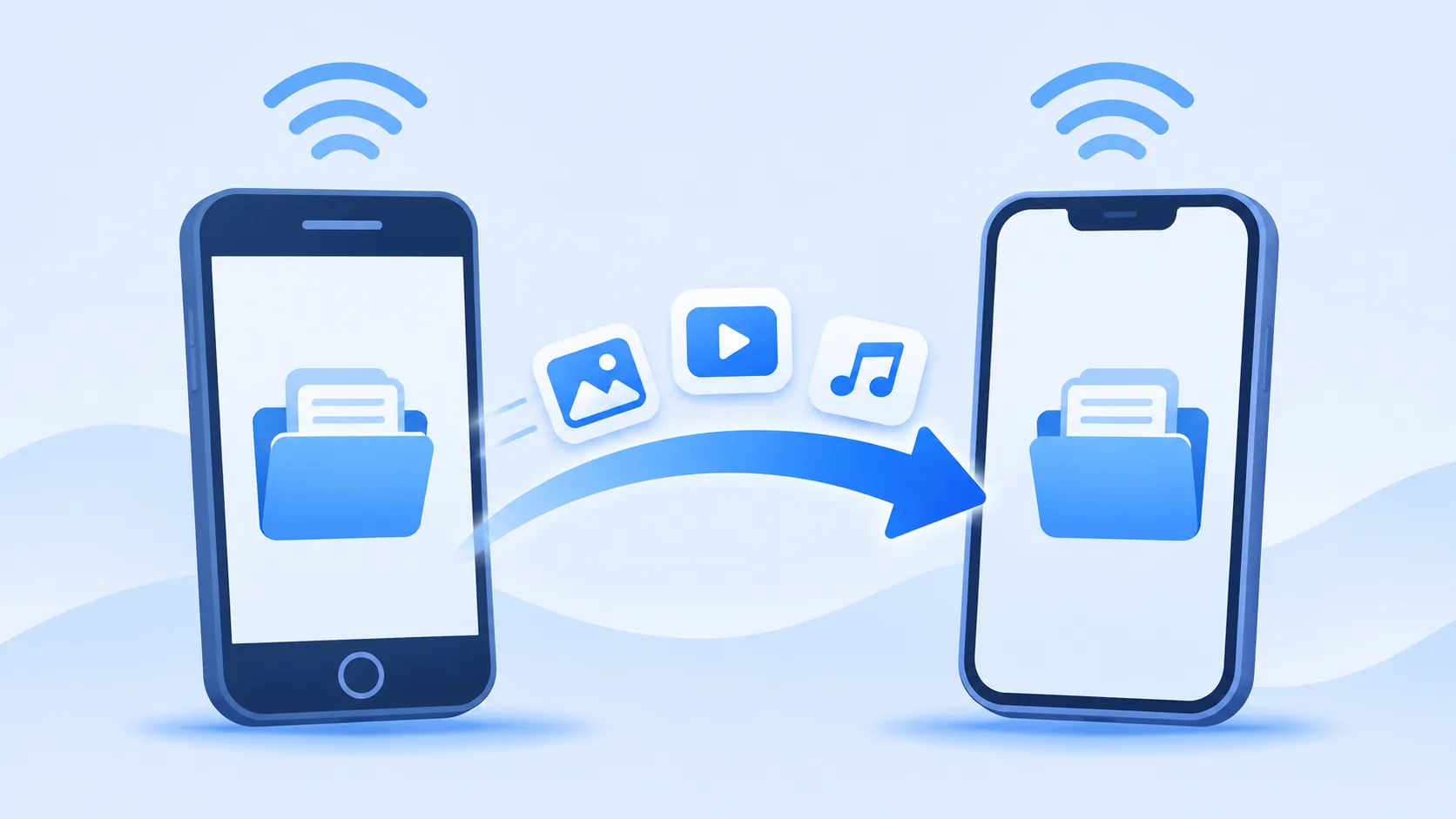
What Can You Transfer
From Android to iPhone, SHAREit can move the file types both platforms understand:
- Photos and videos — camera images and video clips, which arrive in the receiving app's storage and can be saved to the iPhone's photo library where the app offers that option.
- Music and audio files — songs and recordings the iPhone can open.
- Documents — PDFs, Office files, ebooks and similar formats.
What does not carry over are Android app packages: APK files are Android-only and cannot be installed on iOS. Contacts, messages and app data also do not move through a file transfer — those need a dedicated migration tool.
Before You Start
A minute of preparation avoids most failed connections:
- Install SHAREit on both devices — from Google Play on Android and the App Store on iPhone.
- Turn Wi-Fi on for both phones. The transfer uses a local wireless link; mobile data is not required for the transfer itself.
- On Android, grant the location and nearby-device permissions the app requests, since discovery relies on them.
- On iPhone, keep the app in the foreground and allow local network and photo permissions when prompted so files can be found and saved.
- Charge both phones or keep screens awake — a sleeping device can break the connection.
How to Transfer Files
- Open SHAREit on the Android phone and tap Send; on the iPhone, open the app and tap Receive.
- On Android, choose the photos, videos, music or documents you want to send and confirm.
- Wait for the iPhone to appear in the sender's device list, then select it. Depending on your app version, the iPhone may broadcast a hotspot or the Android may join the iPhone's network — follow the on-screen connection method your version shows.
- Accept the transfer on the iPhone if asked, and keep both apps open until every file completes.
- Verify the items arrived on the iPhone before deleting the originals on Android.
The sending side works almost entirely inside the Android app, while the iPhone's job is to stay on the Receive screen and accept what arrives — the two ends are genuinely different flows, not the same steps in reverse.
Where to Find Received Files
Received files land inside SHAREit's own storage on the iPhone first, not directly in Photos. Open the app's received-files or transfer-history view to see them. From there, many versions let you save photos and videos into the iOS Photos app — grant the photo permission when asked. Documents can be exported through the iOS share sheet into the Files app for longer-term storage.
Transfer Limitations
iOS is a more locked-down system, and it shows in a few places:
- Files do not land straight in your camera roll or file system the way they would on Android — they stay in the app until you export them.
- iOS permissions are granular; denying photo or local-network access leaves transfers half-working.
- Android apps cannot be installed on iPhone, so the app-sharing feature has no cross-platform equivalent.
- Connection methods differ by app version, so the exact pairing flow on your devices may not match a tutorial written for a different release.
Troubleshooting
The iPhone never appears on the Android. Check that the iPhone is on the Receive screen, Wi-Fi is on for both, and Android location permission is granted. If your version offers a QR-code or hotspot pairing option, try that instead of automatic discovery.
Connection fails or drops repeatedly. Keep both apps in the foreground, disable VPNs on both phones, and move them closer together. Reopening the app on the iPhone refreshes its receive state.
Files arrived but are not in Photos. Look inside SHAREit's received-files view first, then export to Photos or Files. Grant photo access when iOS asks.
More walkthroughs live in our guides section, and the reverse direction is covered in iPhone to Android transfers. Phone-to-computer moves are explained on the Phone to PC page, and Android-to-Android transfers on the Android page.