How to Transfer Files from iPhone to Android
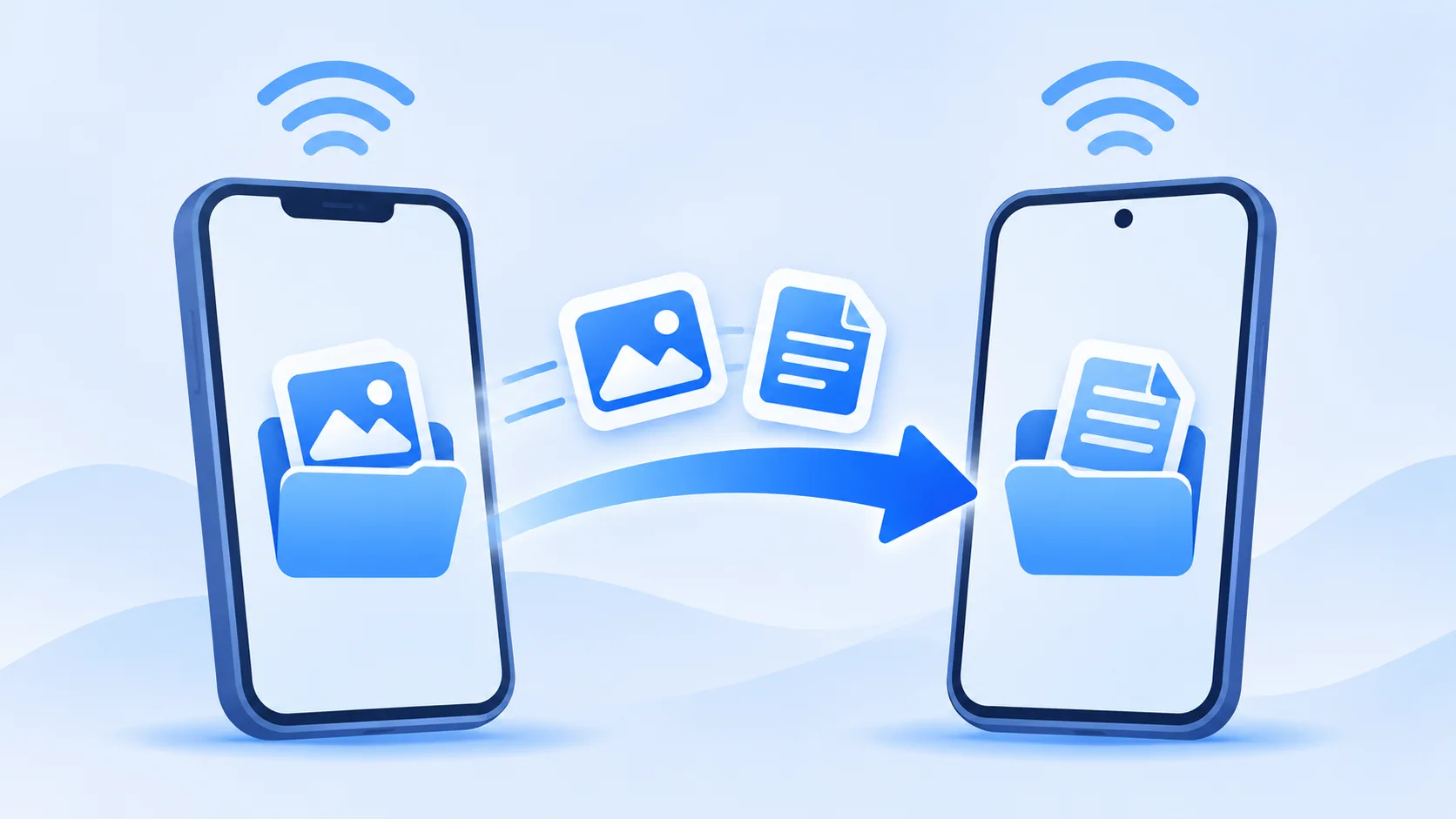
Sending files out of an iPhone to an Android device runs into iOS restrictions that Android users never see. This page explains which files can actually leave an iPhone, how to prepare both devices, the sending flow, where received files land on Android, and the errors worth knowing about.
Supported File Types
From an iPhone, SHAREit can send what iOS actually lets apps reach:
- Photos and videos — items in your photo library, after you grant photo access. iOS may ask you to pick specific photos or allow full library access.
- Music and audio — audio files stored where the app can read them.
- Documents — files saved in the Files app or inside SHAREit itself.
Files that live only inside other apps' private storage, DRM-protected media, and iOS apps themselves cannot be sent — iOS does not expose them. On the Android side almost everything SHAREit receives can be stored and opened normally.
Prepare Your iPhone and Android Phone
The preparation on each side is different, and both matter:
On the iPhone: install SHAREit from the App Store, grant Photos access (full access is easiest for picking many files), allow Local Network access when iOS asks, and keep the app in the foreground during transfers.
On the Android phone: install SHAREit from Google Play, enable Wi-Fi, grant the location/nearby-device permissions shown during setup, and make sure there is enough free storage for incoming files.
Keep the phones within a few metres of each other and avoid VPNs on either side while pairing.
How to Send Files from iPhone to Android
- Open SHAREit on the iPhone and tap Send; on the Android phone, open the app and tap Receive.
- On the iPhone, pick what to send — the photo picker appears first if you granted Photos access; use the file or document tab for other file types.
- Confirm the selection and wait while the app looks for the receiving Android device, then tap it when it appears.
- If the devices cannot see each other automatically, use the connection method your version offers — typically joining the same temporary network or scanning a pairing code.
- Keep both apps open until the transfer finishes, then check the files on the Android before deleting them from the iPhone.
Notice the asymmetry with the opposite direction: here the bottleneck is iOS file access on the sending side, whereas on Android-to-iPhone it is iOS file storage on the receiving side.
Find Received Files on Android
Android is more transparent about storage. Received photos and videos usually appear in your gallery or Google Photos; documents, music and other files land in SHAREit's transfer folder, which you can browse in any file manager — look for the app's folder under internal storage, or check the app's own transfer history to open each item directly.
iPhone Transfer Limitations
Most iPhone-to-Android pain comes from Apple-side rules rather than the transfer itself:
- Photo access can be limited to selected items — if you granted "selected photos" access, files outside that selection simply do not appear in the picker.
- App-to-app sharing does not exist on iOS; you cannot send an installed iPhone app to anything.
- iOS may pause transfers if the app moves to the background or the screen locks, so keep it visible.
- Some file types visible on Android (like APK installers) have no meaning on iOS and cannot be picked from an iPhone at all.
Common Transfer Problems
The Android phone does not show up. Verify the Android is on the Receive screen with Wi-Fi on, that the iPhone allowed Local Network access, and that both apps are current versions. If automatic discovery fails, use the manual pairing method shown in the app.
Photos are missing from the picker. iOS is likely set to "Selected Photos" access. Open Settings → SHAREit → Photos and switch to full access, or add the missing photos to the selection.
Transfer stops partway. The iPhone probably locked or backgrounded the app. Keep the screen awake with the app in front, and resend — completed files do not need to be resent.
Cannot find files on the Android afterwards. Open SHAREit's transfer history, or browse the app's folder in a file manager; gallery apps can take a moment to index new media.
Related guides: the opposite direction is covered in Android to iPhone transfers, Android-to-Android moves on the Android page, and computer transfers on the Phone to PC page.