Transfer Files Between Android Phones with SHAREit
Moving photos, videos, apps and documents from one Android phone to another is one of the most common SHAREit use cases. This page covers which file types are supported, how the transfer flow works, what your phones need, and how to fix the problems people run into most.
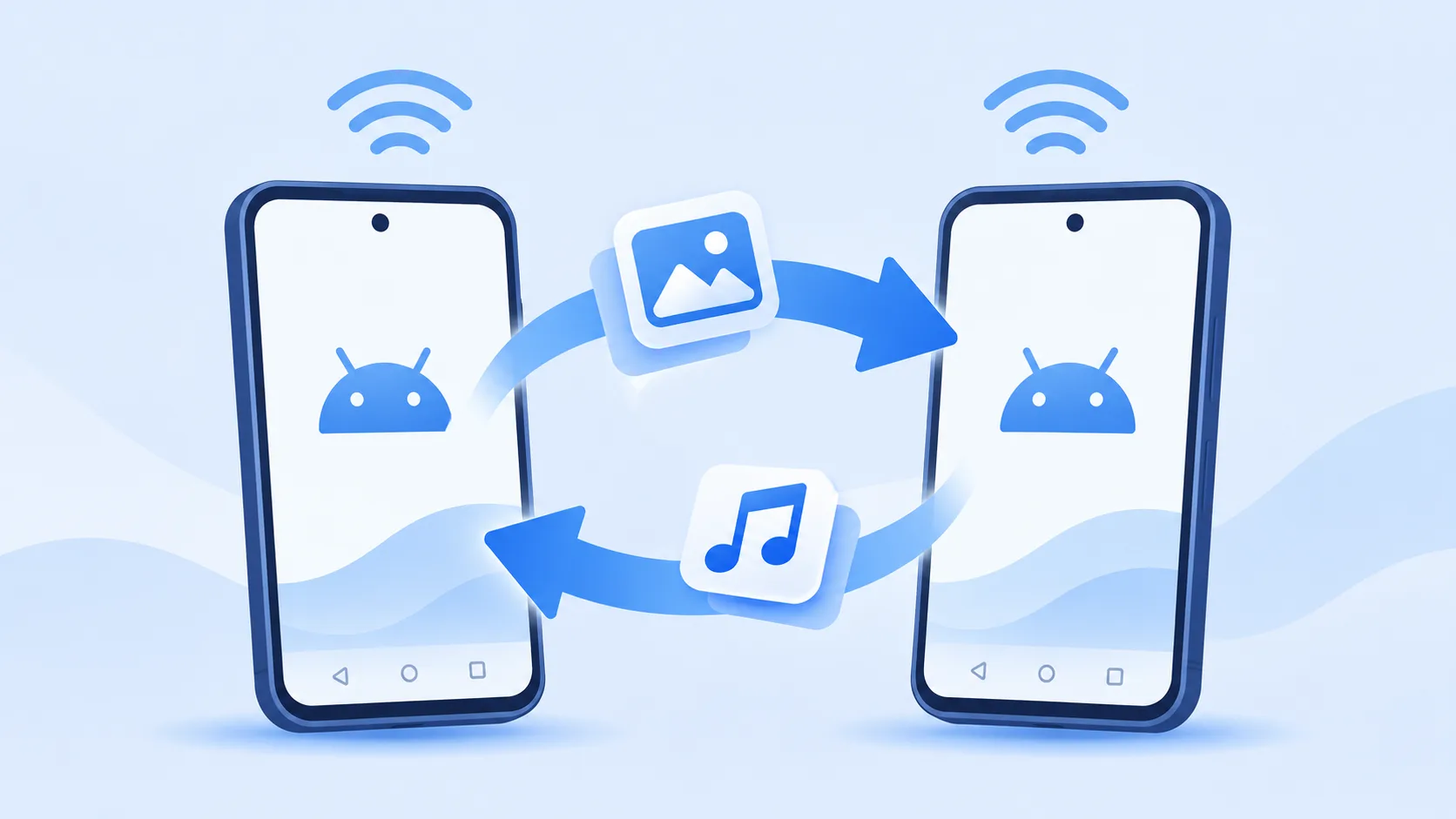
Supported File Types
Between two Android phones, SHAREit can carry the file categories people actually keep on a phone:
- Photos and videos — camera shots, screen recordings, saved clips.
- Music and audio — songs, recordings and other audio files.
- Apps and installation files — supported Android app packages and game files, where the receiving device allows installation.
- Documents — PDFs, ebooks, presentations, spreadsheets, ZIP archives and similar files.
- Multiple items at once — you can select several files or whole folders in one transfer session instead of sending them one by one.
Exact support can vary with the app version and the Android version on each phone, so treat this list as the general case rather than a guarantee for every file format.
How to Transfer Files Between Android Phones
The flow is the same on almost every Android-to-Android transfer:
- Install and open SHAREit on both phones, and keep both devices close together.
- On the phone that has the files, tap Send. On the other phone, tap Receive.
- On the sending phone, browse the file categories and select everything you want to move — photos, videos, apps or documents — then confirm.
- Wait while SHAREit searches for the receiving device, then tap its avatar or name when it appears.
- Accept the connection on the receiving phone if prompted, and keep both apps open until the progress bar finishes.
- Check the received items in your gallery, file manager or SHAREit's transfer history to confirm everything arrived.
Transfer Apps Between Android Devices
SHAREit can send Android app packages from one phone to another, which is useful when the receiving phone has a slow connection or limited data for a fresh store download.
Two limits are worth knowing. First, the receiving phone still has to allow the install: Android may ask you to permit installs from that source before the package can be opened. Second, an app file transferred this way is not always identical to a store install — apps that rely on in-app downloads, licences or account sign-ins may still fetch additional data on first launch. Paid apps do not become free just because the package moved.
Android Requirements
For a smooth Android-to-Android transfer, check the basics first:
- A supported Android version on both phones — very old Android releases may not run current SHAREit builds.
- Wi-Fi enabled on both devices, since the direct transfer uses a local wireless connection rather than your mobile data.
- Location and nearby-device permissions granted where Android asks for them; without these, one phone may not see the other.
- Enough free storage on the receiving phone for everything you are sending.
Common Android Transfer Problems
The phones cannot find each other. Confirm Wi-Fi is on for both, keep them within a few metres, and make sure one is in Send mode and the other in Receive mode. Re-granting location permission and restarting both apps fixes most discovery failures.
The connection drops mid-transfer. Battery-saving modes can suspend the connection. Keep both screens awake, disable aggressive power saving temporarily, and keep the phones close together.
A transferred app will not install. Check that installs from unknown or external sources are allowed for your file manager or SHAREit, and that the receiving Android version supports the app.
Transfer is slow. Interference and distance matter more than file size. Move closer, away from crowded Wi-Fi environments, and avoid running heavy downloads in the background.
If you prefer a lighter Android companion app, see SHARE Lite. For related walkthroughs, see our file sharing guides, including how to send large files on WhatsApp and SHAREit alternatives.