How to Send Large Files on WhatsApp
Sharing a quick photo on WhatsApp is easy. Sharing a full-resolution video, a long screen recording, or a folder of project files is not. WhatsApp applies compression to media and enforces size limits on attachments, so the method you choose decides whether your recipient gets the original file or a shrunken copy. This guide explains the current limits, the document-sharing workaround, and when a file transfer link or a dedicated transfer app is the smarter option.
On This Page
WhatsApp File Size Limits Explained
WhatsApp handles two kinds of attachments differently, and the difference matters for quality.
Media attachments. When you pick a photo or video from your gallery and send it as media, WhatsApp re-encodes it before sending. Images are resized, videos are compressed to a smaller bitrate, and the file your contact receives is not the file you sent. In recent versions WhatsApp also offers an HD quality option for photos and videos, which keeps more detail but still applies compression.
Document attachments. When you send the same file through the Document picker, WhatsApp transfers it unchanged. On current versions the document limit is up to 2 GB per file, which is enough for most videos, archives, and project folders. The trade-off is that a video sent this way arrives as a file the recipient has to open or download rather than an inline playable clip.
Limits can change between app versions and platforms, so treat the numbers in this guide as a snapshot and check the attach sheet in your own app if you are unsure.
How to Send Large Files on WhatsApp
There are two reliable ways to send large items inside WhatsApp itself. Which one you use depends on whether the file is under the document limit and whether you need it to display in the chat.
Send Files as Documents
Sending a file as a document is the simplest way to keep its original quality, because WhatsApp does not re-compress document attachments.
- Open the chat and tap the attachment icon (the paperclip on Android, the + button on iPhone).
- Choose Document instead of Gallery or Photos.
- Browse to the file — a video, a ZIP archive, a PDF, an APK, or anything else — and select it.
- Confirm and send. The file travels at its original size, up to the document limit.
The recipient sees a file card with the name and size. They tap it to download, then open it in a suitable app. On Android the file lands in the WhatsApp Documents folder or the app's media directory; on iPhone it can be saved to the Files app.
Share Large Videos Without Compression
For videos there is one extra option. If the video is within the media limit, select it normally and check for the HD toggle at the top of the preview before sending — HD keeps significantly more detail than standard quality, although the file is still re-encoded.
If the video is too long or too large for that, send it through the Document picker as described above. The full file arrives untouched; the only downside is that it does not play inline in the chat.
How to Send Files Larger Than WhatsApp Allows
Once a file crosses the 2 GB document ceiling — or when you need to move a whole folder — WhatsApp itself is no longer the right tool. You have three practical routes.
Upload to cloud storage and share the link. Google Drive, iCloud Drive, Dropbox, and similar services all let you upload a file and generate a shareable link. Paste that link into WhatsApp and the recipient downloads at full quality. This also works well when the same file needs to reach several people.
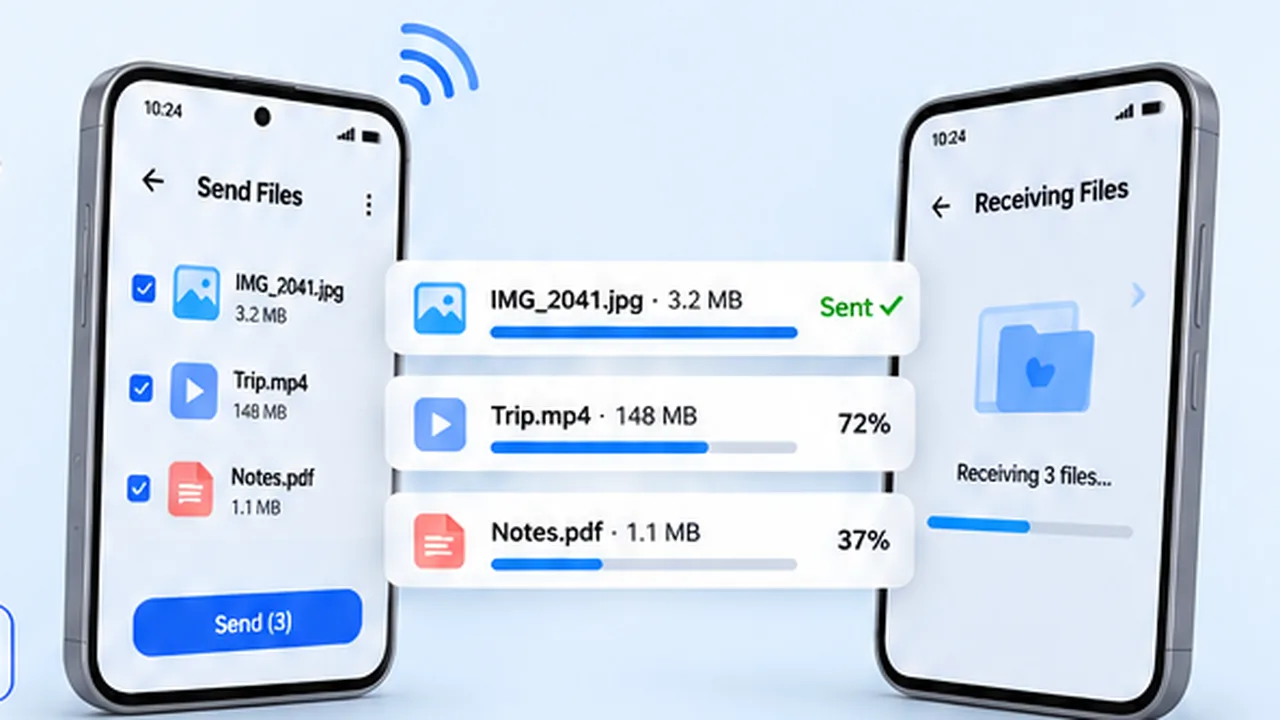
Use a device-to-device transfer app. If the other person is physically nearby, a local transfer app can move very large files directly between phones over a local connection, without uploading anything to the cloud. Options like SHARE Lite handle photo, video, and document transfers between supported devices, and our roundup of file sharing alternatives compares the main approaches.
Split or compress the file. For archives, splitting a ZIP into volumes or lowering a video's resolution with an editor can bring it back under the limit — workable, but slower and lossy.
Why WhatsApp Reduces Photo and Video Quality
Compression is a deliberate design choice, not a bug. Media attachments are re-encoded so they send quickly on slow connections, use less mobile data for both sides, and play reliably inside the chat on almost any device. The cost is resolution and bitrate: a 4K clip becomes a smaller, softer copy.
The workaround is always the same — send the file in a way WhatsApp treats as data rather than media. Documents, cloud links, and local transfer apps all preserve the original bytes because no re-encoding step is involved.
When to Use a File Transfer Link Instead
A shareable download link beats an in-chat attachment in a few specific situations:
- The file is over the document limit. Cloud links have far higher ceilings — effectively whatever your storage plan allows.
- The recipient is not on WhatsApp or you want the same file in an email or another chat app. One link works everywhere.
- You need control after sending. Most services let you expire the link, add a password, or revoke access later — useful for sensitive files.
- You are moving files between your own devices. Upload on the phone, download on the PC, and skip cables entirely.
When sharing links, double-check the permission settings before pasting them into a chat: a link set to "anyone with the link can view" is convenient but visible to whoever receives it, including forwards.
Common Problems When Sending Large Files
The upload stalls partway. Large attachments need a stable connection. Switch from mobile data to Wi-Fi, keep WhatsApp in the foreground, and retry — the upload usually resumes rather than restarting.
You get a "file too large" error. You are over the document limit for your app version. Move the file to cloud storage and share a link instead.
The video looks blurry on the other end. It was sent as media and compressed. Resend it as a document, or resend with the HD option if the file is small enough.
The recipient cannot open the file. Some formats need a specific app — an APK needs a package installer, an archive needs an unzipping tool, an uncommon video codec needs a capable player. Tell the recipient what the file is and which app opens it.