How to Share Files With a QR Code
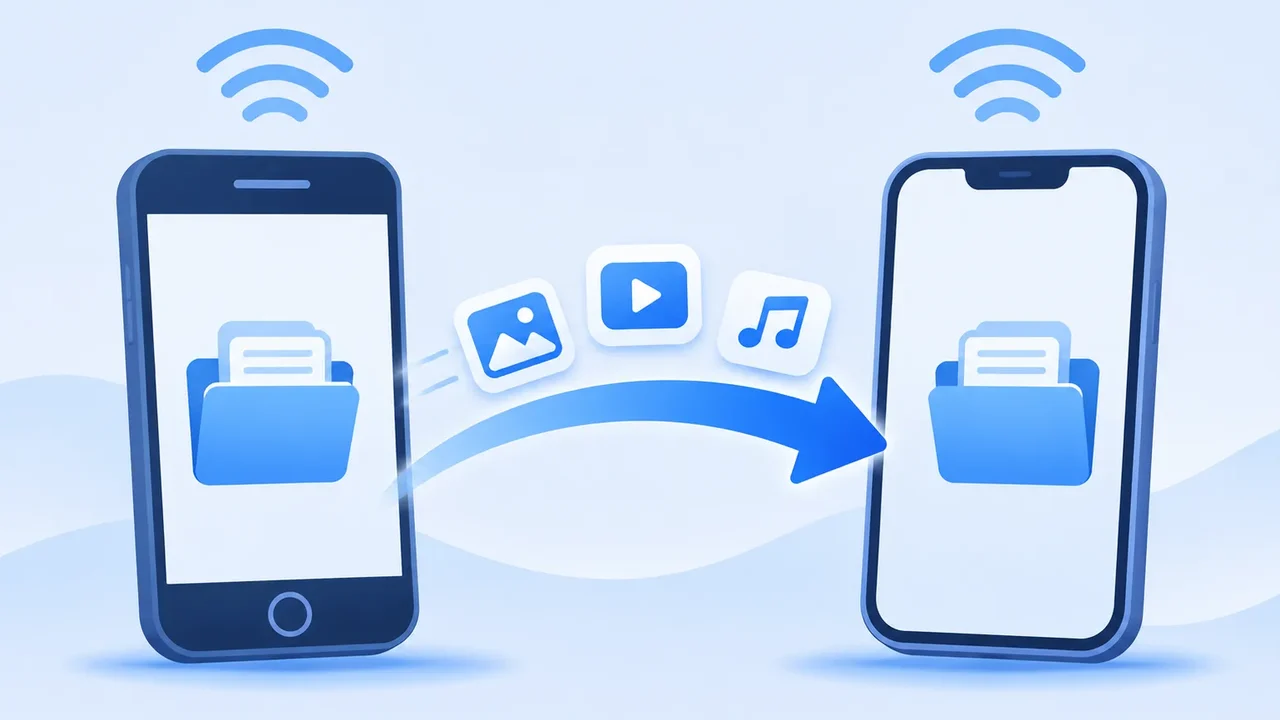
Typing a long URL or pairing two unfamiliar devices over Bluetooth can slow down a simple file handoff. QR code file sharing turns a download link or a local Wi-Fi transfer session into a scannable square on your screen. The receiving person points their camera at the code, taps the prompt, and starts receiving the file. This guide walks through how QR code sharing works, how to scan codes on Android and iPhone, and how to avoid common connection pitfalls.
On This Page
What Is QR Code File Sharing?
A QR code does not store a large video or document inside the image itself. Instead, the pattern encodes connection instructions — either a web URL pointing to a cloud file or local network address, or pairing credentials for a peer-to-peer transfer app such as SHAREit or SHARE Lite.
In practice, QR code file sharing falls into two everyday patterns:
- Cloud link QR codes: You upload a file to cloud storage, generate a shareable URL, and display that URL as a QR code so anyone can scan and download it over the internet.
- Local device-to-device QR pairing: Apps like SHAREit generate a QR code on the sending or receiving screen so the second device can join the same local Wi-Fi session or hotspot without manual typing.
How to Share Files Using a QR Code
Whether you are using a cloud link or a local transfer utility, the workflow follows three clear stages.
Create a File Sharing Link
First, choose the photos, videos, or documents you want to share. In a local transfer app, tap Send, pick your files, and proceed to the connection screen. If you are sharing via cloud storage, upload the file or folder and set the link permission so the intended recipient can view or download it.
Display the QR Code
Open the QR code option on the sending device (or on the PC screen when connecting a phone to a computer). Keep your screen brightness at a comfortable mid-to-high level and avoid angled glare so the other device's camera can focus on the code quickly.
Scan the Code and Download Files
On the second device, open the built-in scanner inside the transfer app (if pairing locally) or open the system camera app (if opening a web/cloud link). Hold the camera steady until the code is recognized, tap the connection or download prompt, and wait for the transfer to complete before locking either screen.
How to Scan a QR Code on Android and iPhone
On Android: Most modern Android phones scan web QR codes directly in the default Camera app or via the Quick Settings Scan QR code tile. When you are pairing inside SHAREit or SHARE Lite, use the in-app scanner on the Receive/Connect screen so the app can read its own pairing format and configure Wi-Fi permissions automatically.
On iPhone: The iOS Camera app and the Control Center Code Scanner recognize standard web URLs right away. When sharing files on iPhone through a cross-platform transfer app, scan from inside the app or accept the local network prompt that appears on screen so iOS allows the two devices to communicate.
Sharing Files Between a Phone and PC
QR codes are especially handy when moving files between a mobile device and a desktop computer, because you never have to email files to yourself or hunt for a USB cable.
In a typical phone-to-PC file transfer, you open the desktop client or local web interface on your computer, display the pairing QR code on the monitor, and scan it with your phone. Once linked over the same Wi-Fi network, you can send photos, videos, and documents in either direction.
QR Code Sharing Safety Tips
Because a QR code hides the destination address until you scan it, keep a few simple precautions in mind:
- Only scan codes from people and screens you trust: Treat a QR code like any clickable link. Do not scan random public codes claiming to offer app downloads or free files.
- Preview the URL before opening: Modern camera apps show the domain name in a small banner before launching the browser. Verify that the address matches the service you expect.
- Expire or revoke public cloud links: If you generate a cloud QR code for a meeting or classroom, turn off link sharing once everyone has downloaded the file.
- Disconnect local sessions when finished: Close the transfer session after your files arrive so your device stops advertising itself on the local network.
Common QR Code Scanning Problems
The camera will not focus on the code. Move the phone slightly back (around 15–25 cm from the screen), increase the brightness on the display showing the code, and tilt the screen slightly to eliminate reflections.
Scanning opens a web search instead of connecting. Some app-specific pairing codes are meant to be scanned with the scanner built into SHAREit rather than the generic system camera. Open the transfer app and tap its scan icon.
The link opens, but the page fails to load. For local Wi-Fi QR transfers, both devices must be connected to the same Wi-Fi router (and not isolated on a guest network). Check your Wi-Fi network name and try again, or browse more file sharing guides for alternative transfer methods.