Transfer Files Between Your Phone and PC with SHAREit
Moving files between a phone and a Windows PC is where SHAREit saves the most time — no cables, no cloud uploads, no emailing files to yourself. This page covers supported devices, transfers in both directions, connection steps, PC requirements, and fixes for common problems.
Supported Devices
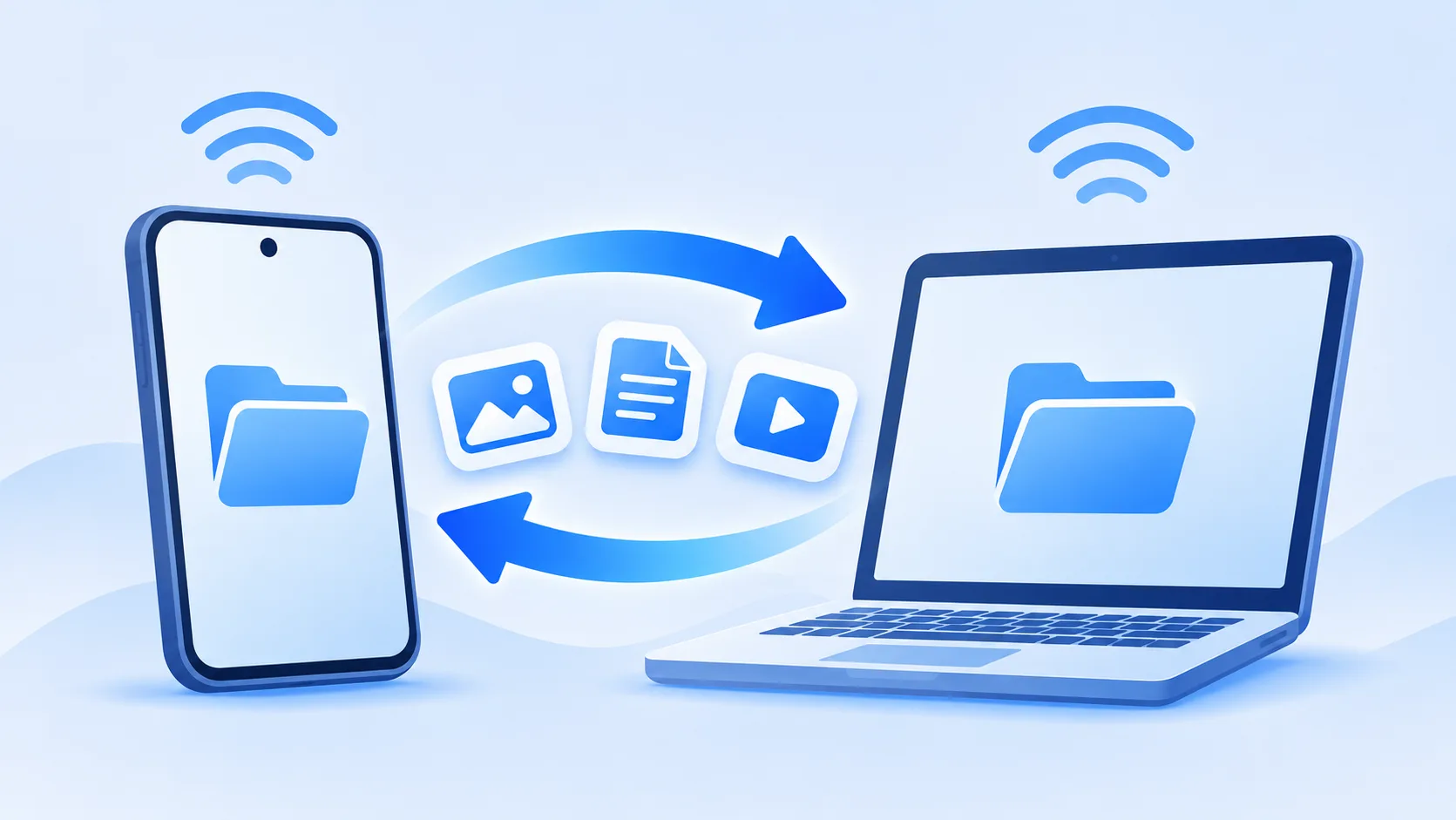
On the computer side, SHAREit provides a Windows version for supported PCs — that is what this page covers. On the phone side, both Android phones and iPhones can pair with a Windows PC, though the pairing method and file locations differ between the two.
macOS support is not covered here: if a stable Mac version becomes available we will document it separately rather than assume the Windows steps apply.
Phone to PC Transfer
Sending from phone to computer works like phone-to-phone with the PC acting as the receiver:
- Open SHAREit on the phone and on the Windows PC.
- Tap Send on the phone and pick the photos, videos or documents to move.
- On the PC, choose the receive/connect option so the computer is discoverable.
- Select the PC when it appears on the phone, or use the QR-code pairing if your version offers one — scanning the code with the phone is usually the quickest path.
- Wait for completion; received files go to the location the PC app shows, typically a SHAREit folder inside your user directory.
PC to Phone Transfer
The reverse direction is just as useful — pushing documents, music or videos from the PC to the phone:
- Open SHAREit on both devices and make the phone reachable (Receive mode).
- On the PC, choose the send option and add files by browsing or dragging them into the window.
- Pick the phone from the discovered devices and confirm.
- Accept on the phone if prompted. Files land in SHAREit's storage on Android, or in the app's received-files area on iPhone, where you can export them onward.
Supported File Types
Phone-to-PC transfers handle the everyday set: photos and videos from your camera roll, music and audio files, and documents such as PDFs, Office files, ebooks and archives. Because the PC has full file-system access, received items are easy to organise, rename and back up once they land.
How to Connect Your Phone to PC
Two connection methods cover nearly all cases:
Same Wi-Fi network. Connect both devices to the same Wi-Fi, open SHAREit on both, set one side to send and the other to receive, and pick the discovered device.
QR-code pairing. Many versions show a QR code on the PC screen. Point the phone's in-app scanner (or the camera option inside SHAREit) at it, and the phone joins the PC's connection directly — this works even when the devices are not on the same network. See our guide on how to share files with a QR code for more tips.
If neither works, check the Windows firewall prompt: the PC app needs permission to communicate on private networks, and a blocked prompt is the most common reason phones cannot see the computer.
PC Requirements
- A supported Windows version — check the official download source for the current Windows build.
- Wi-Fi hardware on the PC (built-in or a USB adapter) for the wireless connection; a desktop without Wi-Fi cannot pair wirelessly.
- The phone and PC on the same network, or QR-code pairing available.
- Firewall/antivirus permission for SHAREit to accept local connections.
- Free disk space for incoming files.
Common PC Transfer Problems
The PC cannot find the phone. Confirm both are on the same Wi-Fi or retry with QR pairing, and check that the Windows firewall allowed SHAREit through on private networks.
Connection fails after pairing. VPNs and corporate network isolation break local discovery. Disconnect VPNs and avoid guest Wi-Fi networks that block device-to-device traffic.
Transfers are slow. Network quality between phone and PC is the bottleneck — sit closer to the router, or prefer QR/hotspot pairing, which bypasses a congested LAN.
Files arrived but you cannot find them. Open the PC app's settings or received-files view to see the save location, then browse that folder in File Explorer.
Related pages: Android to Android transfers, Android to iPhone, iPhone to Android, and our file sharing guides.