How to Share Apps Between Android Phones
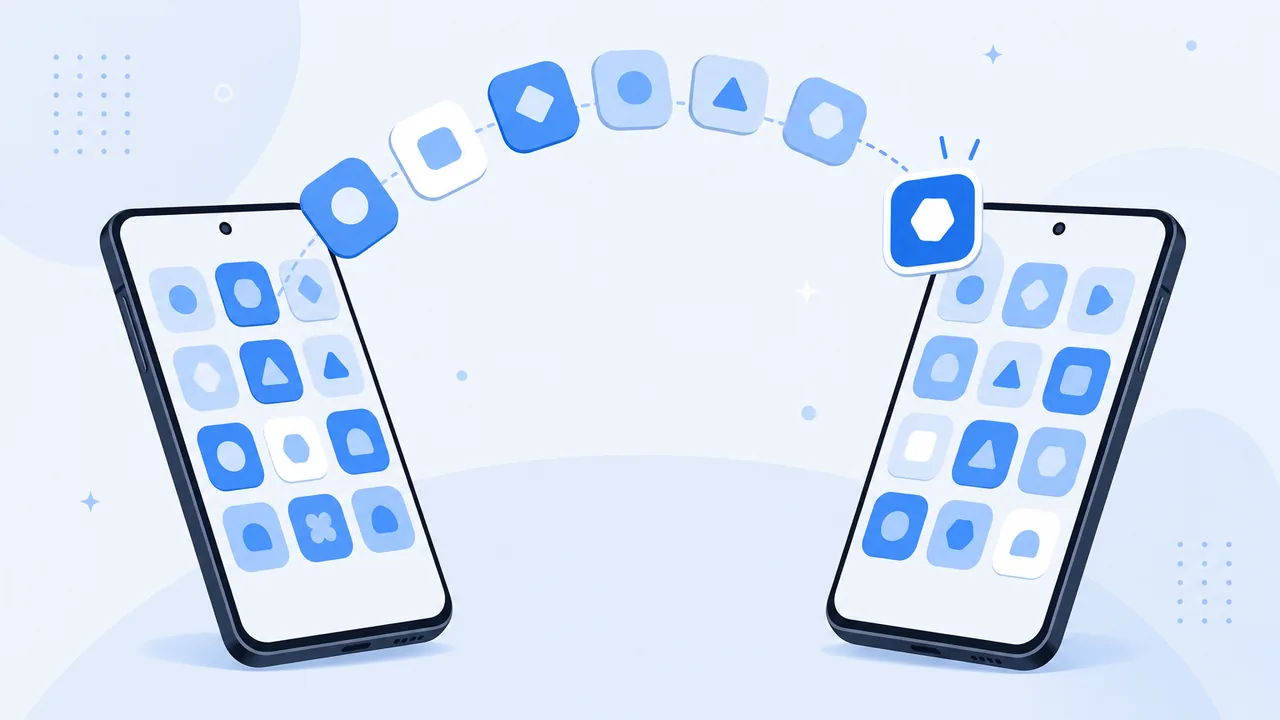
Sending an app to another Android phone sounds like sending a file, and it partly is. The confusion comes from three different things sharing the word "app": the store listing, the installation package, and the data inside the app. Only the first two can be shared, and the third almost never can. This guide covers each method and where its limits are.
On This Page
Can You Share Apps Between Android Phones?
Partly. Three routes exist, and they produce different results:
- A store link. You share a link to the app's listing; the other person installs it themselves. Clean and safe, but it needs a working connection and an account.
- An APK file. You export the installation package and send it as a file. The other phone installs from that package. Useful offline or for apps no longer listed.
- The app's own share feature. Some apps and some file transfer tools expose an app-sharing entry that packages the installation for you.
What none of these do is copy the app's data. Signing in on the new phone starts a fresh session unless the app syncs to an account server. Keep that distinction in mind for the rest of this guide — it is the source of most disappointment.
Method 1: Share an App Through Google Play
- Open Google Play and find the app.
- Use the share control on the app's page.
- Send the resulting link through any channel — message, email, or a QR code.
- The other person opens the link and taps Install.
This is the safest method, because the store verifies the package and delivers the correct build for that device. It also handles updates afterwards, which a sideloaded APK does not. The catch is that it shares an entry point, not the app itself: the recipient needs a Play account and a connection, and the app must be available in their region. If it is not listed in their country, the link will not install anything.
Method 2: Share an APK File Between Android Phones
An APK is the installation package for an Android app — a single file containing the compiled code, resources, and manifest. Installing one is called sideloading.
- Obtain the APK. Some phones can export an installed app from the app info screen, and some apps offer their own export. Availability varies by manufacturer and Android version.
- Send the file using any file transfer method: a local transfer app, a cable, or cloud storage.
- On the receiving phone, open the file from your file manager.
- Allow installs from that source when Android prompts you, install, then consider turning the permission back off.
Security guidance, and it is not optional: only install APKs you obtained from a source you trust, never from a random download site, and never disable Play Protect to force an install through. A modified APK can carry malware, and the signature mismatch warning exists for a reason. If Android refuses the install with a signature error, do not look for a workaround — that file is not the official package.
Method 3: Share Apps Using SHAREit
SHAREit has historically included an app-sharing entry that packages an installed app for transfer to another device. Availability depends on the app version and platform, so check what your build actually shows rather than following a fixed path.
- Open the app on the sending phone and look for an apps or app-sharing category on the send screen.
- If it exists, select the app you want to share.
- Choose the receiving device from the list, or pair by QR code.
- On the receiving phone, accept the transfer and check the received file.
- Complete the install from the system prompt, allowing the install source when asked.
If your version shows no app-sharing entry, it does not exist on your build — do not hunt for a hidden menu. Use the store link or an exported APK instead. The received package lands in the app's download folder alongside other incoming files; if you cannot find it afterwards, see where SHAREit saves files on Android. And remember what is being sent: an installation package, not the app with its data. On the new phone you will sign in again, and local-only data stays behind.
Can You Transfer App Data to Another Phone?
This is the part most people actually want, and it works differently from sharing the app.
- An APK is an installer. It contains no account state, no saved progress, and no settings from your phone.
- Account-based apps restore on sign-in. Chat, note, and productivity apps that store data on their servers repopulate themselves after you log in.
- Games and offline apps need their own backup. Progress usually travels through the platform's game service or an in-app cloud save. Without one, it does not move.
- Banking, payment, and security apps re-enroll. Expect to verify the device again; that is deliberate and should not be circumvented.
For a full device migration, use the phone maker's own setup tool, which handles app data for the apps that support it. Our guide to moving data to a new phone covers those paths, including what they skip, and the Android to Android page explains the pairing requirements for moving ordinary files between two phones.
Why Can't I Install a Shared APK?
The file is incomplete. A transfer interrupted midway leaves an APK that looks fine in the file manager but fails at install. Compare the file size with the source.
Architecture or Android version mismatch. Packages are built for specific CPU architectures and minimum system versions. An APK for a newer Android release will not install on an older phone.
Install permission is off. Android blocks installs from unknown sources by default. Grant it for the specific app you are installing from — a file manager, for example — rather than globally.
The signature does not match an existing install. If the app is already installed from Play and the shared APK was signed differently, Android refuses the update. Uninstalling the existing copy usually resolves it, at the cost of that app's local data.
The app is region-locked or removed. Some packages check the store region at install time and will exit immediately.