How to Transfer Files from Android to Mac
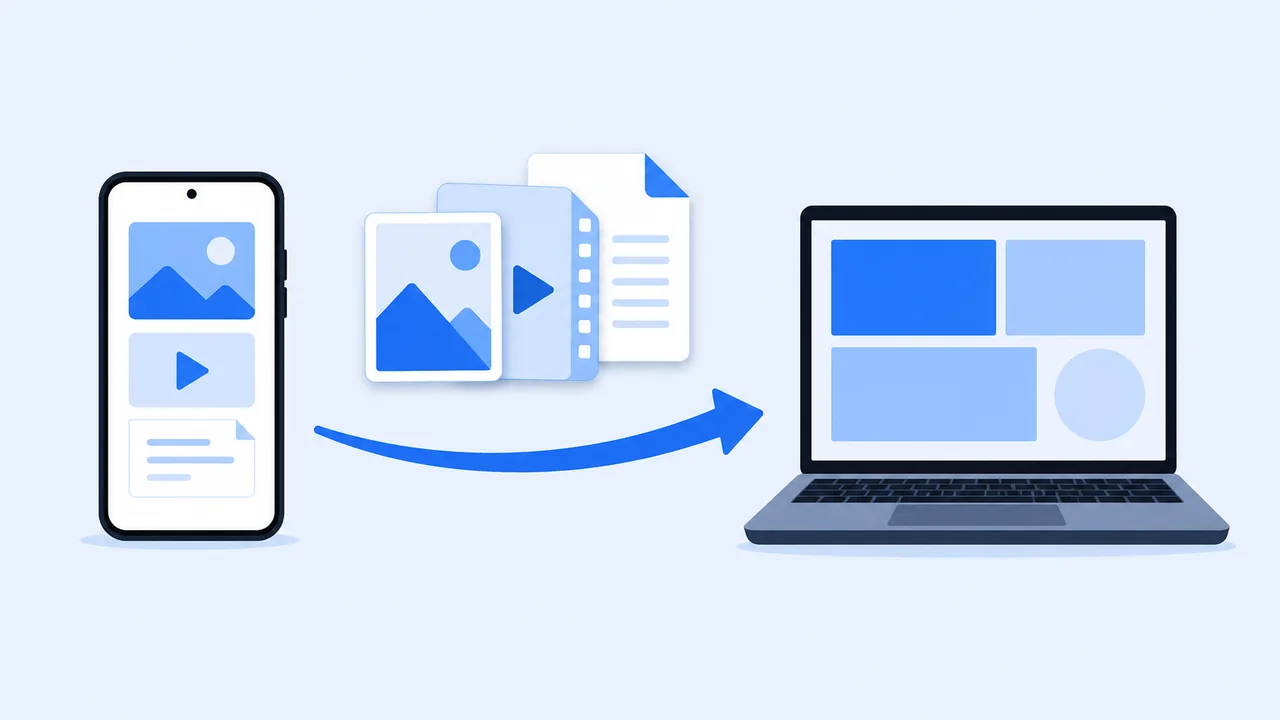
You plug the Android phone into the Mac, and nothing appears on the desktop. That single missing icon is why this transfer trips up so many people: macOS does not mount an Android phone as a removable drive the way Windows does. It can still be done, with a cable, a wireless session, cloud storage, or a browser. This guide compares all four and explains what each one actually requires.
On This Page
What Is the Easiest Way to Transfer Files from Android to Mac?
There is no single best method, because "easiest" depends on how much data you have and whether you can plug in. A rough comparison:
- USB cable. Fastest for large batches. Needs a data-capable cable and a file transfer app, since Finder will not read the phone by itself.
- Wireless transfer tool. Convenient for a handful of files and for repeated transfers between the same two devices. Needs compatible builds on both ends and a shared local network.
- Cloud storage. Best when the files also need to exist somewhere else, or when the recipient is not you. Costs upload time and, often, storage quota.
- Browser-based transfer. No installation on the Mac beyond a browser. Good for one-off handoffs, less pleasant for folders full of files.
If you are moving a 40 GB video archive once, use the cable. If you send yourself three screenshots a day, a wireless or browser method saves more time over a month.
Method 1: Transfer Files Using a USB Cable
This is the most reliable route for large files, provided you have the right cable and a transfer utility.
- Use a USB cable that supports data transfer. Many cables bundled with chargers carry power only, and those will never show a device.
- Connect the phone to the Mac.
- On the phone, open the USB notification and choose File transfer or MTP. Charging only is the default on most Android phones.
- On the Mac, open your chosen file-transfer utility. Finder alone will not browse the phone.
- Browse to the folder holding your photos, videos, or documents and copy it to a folder on the Mac.
- Eject or unmount the phone before unplugging, then verify the copied files open correctly.
Two caveats matter more than any tutorial step. First, macOS support for Android over USB has historically depended on separate software — Apple's legacy Android File Transfer utility or a third-party MTP client — and compatibility changes with macOS releases, so check which option currently works on your version before planning around it. Second, access permissions live on the phone: without unlocking it and confirming the file transfer mode, the Mac will see nothing at all.
Method 2: Transfer Files Wirelessly
Wireless transfer skips the cable entirely and normally runs over your local Wi-Fi network rather than the internet, which keeps large files fast and off your metered data.
- Connect the phone and the Mac to the same local network.
- Open a compatible transfer tool on both devices.
- Pair them using whatever mechanism the tool provides — a device list, a QR code, or a short code shown on screen.
- Select the files you want to move.
- Confirm the destination folder on the Mac and wait for the transfer to complete.
SHAREit is one option in this category, but confirm two things before relying on it: that the current version offers a macOS build, and that the pairing method works on your network. Both change between releases. If the tool you have works between your phone and a Windows PC but has no Mac build, it will not help here. Our comparison of SHAREit alternatives covers cross-platform tools that do ship a Mac client.
Method 3: Use Cloud Storage
Cloud storage is not the fastest method, but it is the most forgiving. It works across any two devices, survives a dropped connection, and leaves you with an off-device copy.
- Upload the files from the Android phone using the cloud service's app.
- Sign in to the same account on the Mac.
- Download the files you need, or enable the desktop client's sync folder.
- Verify the downloads before deleting anything from the phone.
Plan around two real costs. Upload and download both consume internet bandwidth, which matters on a metered connection, and free tiers usually cap storage well below what a photo library needs. Uploading a 4K video over a phone hotspot can take far longer than plugging in a cable, so cloud is the better choice for documents and moderate photo sets than for multi-gigabyte video.
Method 4: Use a Browser-Based File Transfer Option
Browser-based transfer — often called web share — turns one device into a small local server and the other into a client.
- Start a share session on the Android phone.
- The phone displays an address, and usually a QR code, for the Mac to open.
- Type the address or scan the code in Safari or Chrome on the Mac.
- Download the files from the page that opens.
These sessions usually run over the local network, so the Mac and phone must be able to reach each other. A corporate network that isolates clients, or a browser extension that blocks local addresses, will break the link even though both devices are online. Do not assume a browser transfer means no network at all — if local Wi-Fi is unavailable, you need one of the offline options instead. Our guide to transferring files without internet covers that case.
Which Android-to-Mac Transfer Method Should You Choose?
Match the method to the job rather than picking a favorite.
- Large videos and full backups: USB cable. Hours of transfer over Wi-Fi invites interruptions.
- No cable, same room: a wireless transfer tool on a shared network. Fast enough for photos and documents.
- Remote or uncertain devices: cloud storage. It does not care which operating system the other end runs.
- One quick file onto a borrowed Mac: browser-based transfer. Nothing to install, nothing to clean up.
- Repeated transfers of similar files: whichever method you can automate or repeat without re-pairing every time.
For very large video files in particular, check that the method preserves the original file rather than re-encoding it — a handoff that compresses a 4K clip has not really solved your problem. Our guide to sending large videos without losing quality explains how to verify that. If you are targeting a Windows PC instead, see the dedicated Phone to PC page.