How to Transfer Data from an Old Phone to a New Phone
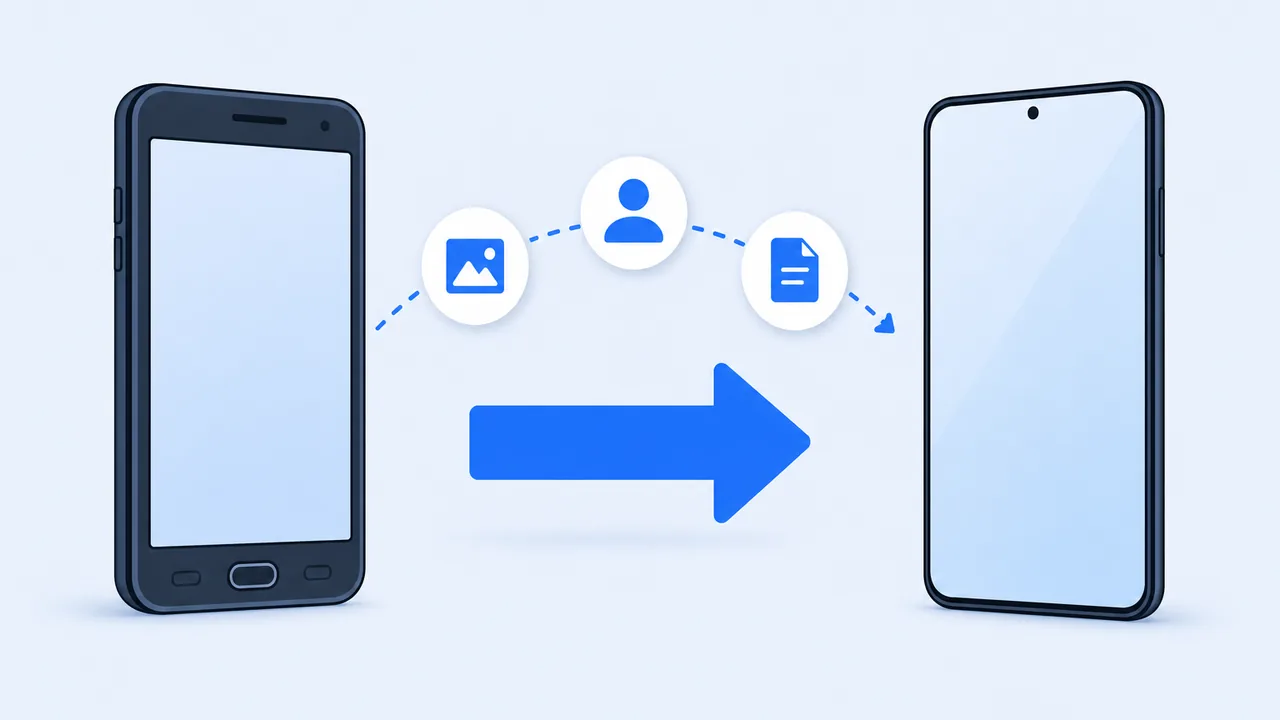
A new phone arrives, and the first question is how much of the old one can come along. The honest answer depends on the platform pair: system setup tools move a great deal between two phones of the same type, less across platforms, and never everything. This guide walks through each path and the checks that prevent a data loss you only notice two weeks later.
On This Page
What Should You Transfer to Your New Phone?
Before touching either device, list what actually matters. It is rarely the whole storage.
- Photos and videos. Usually the largest and most irreplaceable category.
- Contacts. Small, but painful to reconstruct.
- Documents and downloads. PDFs, scans, and downloaded files that never reached a cloud account.
- Music and recordings. Including voice memos, which are easy to forget.
- Apps. Reinstallable in most cases, but the list itself is useful.
- Messages and app data. The hardest category, and the one most people assume is covered when it is not.
Keep one distinction in mind throughout: copying files is not the same as migrating a phone. A file copy moves photos, videos, and documents. A full migration also carries contacts, call history, app data, settings, and message databases — and only the platform's own tools attempt that.
Set aside time and power for this. A large photo library plus messages can take well over an hour over a cable, longer over Wi-Fi, and the transfer will fail if either phone sleeps or drops below about 20% battery. Plug both devices into chargers, disable battery saver, and stay on the setup screen rather than switching apps to pass the time.
How to Transfer Data from Android to Android
- Start the new phone's initial setup and choose to copy data from an old device.
- Connect the two phones as prompted — usually by cable, sometimes over a local Wi-Fi link.
- Select the data categories you want: contacts, photos, videos, messages, apps, and settings.
- Keep both phones unlocked, charged, and close together for the whole process.
- After restoration, verify contacts, photos, and messages before doing anything else.
The setup wizard is a good starting point but not a guarantee. Some categories skip silently: banking apps often refuse to migrate, apps that store data only on their own servers will re-download it, and files sitting in unusual folders may be left behind. Open a photo, a video, and a document from the old phone and confirm each one exists on the new device, then check that the timestamps look right — a file that arrives with today's date instead of its original date has been re-encoded rather than copied. If the wizard cannot complete, a direct file transfer of the important folders is a reasonable fallback — see our guide on where SHAREit stores received files for folder layouts.
How to Transfer Data from iPhone to iPhone
Quick Start. Put the old phone next to the new one, turn both on, and follow the pairing prompt. Hold the old phone's camera over the animated pattern on the new screen, then choose to transfer directly from the old device. Both phones must be plugged into power and on the same Wi-Fi network, and the transfer can take a long time for a full library.
iCloud backup. Back up the old phone to iCloud first, then restore that backup during the new phone's setup. This works when the phones cannot be together, but it depends on your iCloud plan having enough space for the backup — a common blocker.
Two warnings apply to both methods. Do not erase the old phone until you have used the new one for a day and confirmed the photos, messages, and health data arrived. And keep the old phone powered off rather than reset, so you can retry if the transfer or restore failed quietly.
How to Move Data Between Android and iPhone
Cross-platform migration is supported, but with visible gaps.
- Android to iPhone: Apple's Move to iOS app runs during the new iPhone's setup. It copies contacts, message history, photos, videos, calendars, and some accounts. It does not move app data, and Android apps are not transferred — you reinstall their iOS equivalents.
- iPhone to Android: most Android makers ship a migration tool that connects to an iPhone by cable and copies contacts, photos, videos, calendars, and some messages. Google's account sync covers contacts and calendar; photos may need a separate transfer.
- What usually survives: contacts, photos, videos, calendars, and standard documents.
- What usually does not: app-specific data, chat history inside third-party apps that lack a cross-platform backup, saved passwords held in a platform keychain, and secure app sessions.
Our Android to iPhone and iPhone to Android pages cover the pairing requirements for each direction.
Can SHAREit Transfer Everything to a New Phone?
No — and this is where expectations most often go wrong. SHAREit is a file transfer tool. It moves files from one device to another: photos, videos, music, documents, and installation packages. It is not a phone cloning tool.
What a file transfer tool can do well:
- Move a large photo and video library between the two phones.
- Copy folders of documents and downloads that the setup wizard skipped.
- Send an app's installation package when reinstalling from a store is not an option.
What it does not do:
- Restore contacts, call logs, or system settings.
- Move app data, login sessions, or game progress that lives inside an app's private storage.
- Transfer chat history unless that app offers its own export or backup.
- Carry account credentials or two-factor enrollment.
Used with the right expectation, a transfer tool is the fastest way to move the bulk files while the system wizard handles the rest. Used as a clone, it will leave gaps you discover later. For a same-platform transfer, start with the platform's own tool and use file transfer for the leftovers — our Android to Android page covers that path.
What to Check Before Erasing Your Old Phone
Resetting the old phone is irreversible. Work through this list first, on the new device.
- Photos and videos: open several, including the oldest and the newest, and confirm the dates are intact.
- Contacts: compare the count against the old phone and spot-check a few entries with custom fields.
- Important files: open one PDF, one document, and one downloaded archive from the transfer.
- Chat backups: open each messaging app and confirm history restored through its own official backup, not just the app icon.
- Accounts and two-factor: sign in to your main accounts, and make sure the authenticator or SMS method still works on the new device.
- Banking and payment apps: expect to re-enroll, and do it before wiping the old phone in case a verification code is sent there.
Only after all six checks pass should you sign out of accounts on the old phone and perform a factory reset. Keep the old phone powered off and stored for a week rather than wiping it the same evening — a missing file is far easier to recover from a device that still exists. For the mechanics of a large file handoff between the two devices, see sending large videos without losing quality.