How to Transfer Files Without Internet
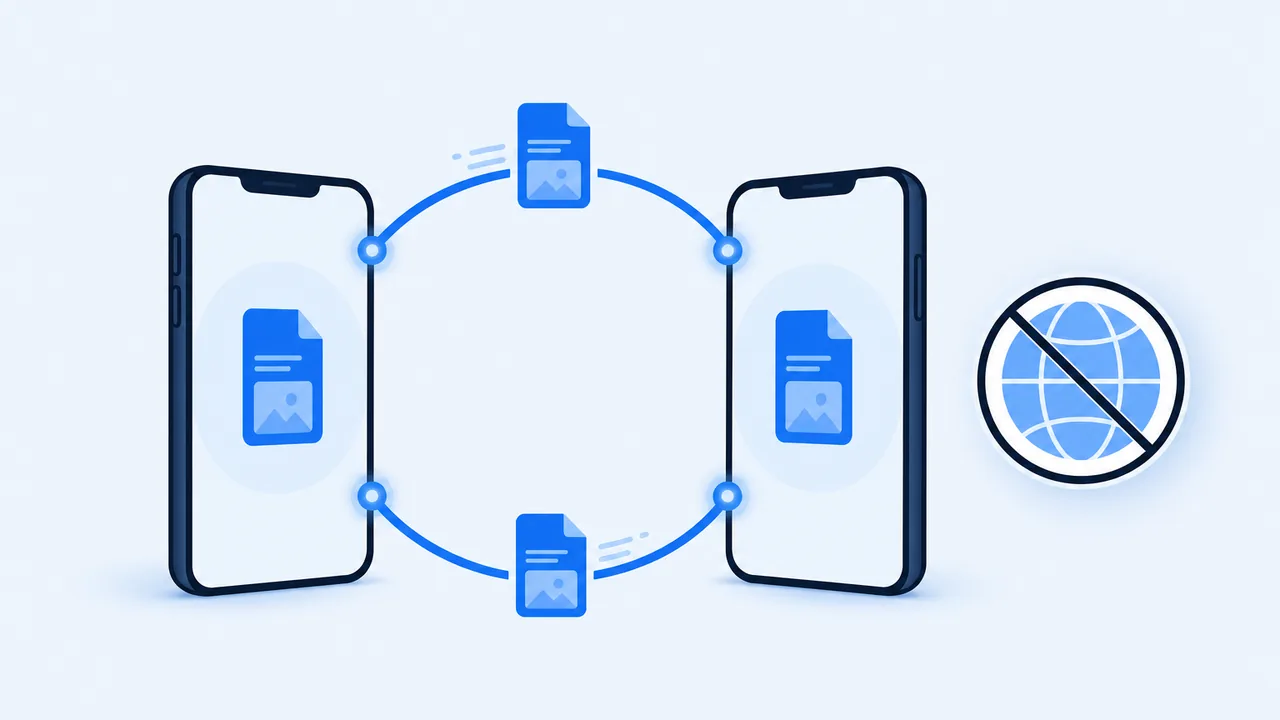
You are on a train, in a basement, or simply out of data, and you need to hand a file to the person next to you. Nothing about that requires the internet. Several methods move files directly between nearby devices, and they differ mainly in speed and in how much setup they demand. This guide separates the connection types that people constantly mix up, then walks through each method.
On This Page
- Can You Transfer Files Without an Internet Connection?
- Method 1: Transfer Files Over Local Wi-Fi
- Method 2: Use a Phone Hotspot
- Method 3: Transfer Small Files with Bluetooth
- Method 4: Use a USB Cable or External Storage
- Method 5: Use an Offline File Transfer App
- Does SHAREit Work Without Mobile Data?
- Which Offline File Transfer Method Should You Choose?
- Offline File Transfer FAQs
Can You Transfer Files Without an Internet Connection?
Yes. Files can travel over a purely local path, which means they never leave the two devices. The confusion starts because "no internet" gets used for several different situations. Keep these five terms apart:
- Internet connection: access to the wider network, through mobile data or a router with a live uplink.
- Local Wi-Fi connection: a wireless link between devices on the same network. It can exist with no internet at all.
- Mobile hotspot: one phone acting as a router for another. It can share the internet, but it can also run with mobile data switched off.
- Bluetooth: a short-range direct link, no network involved.
- USB cable: a physical connection, no wireless at all.
Once you separate these, the question stops being "is there internet" and becomes "can the two devices reach each other". That is a much easier thing to check.
Method 1: Transfer Files Over Local Wi-Fi
If both devices are on the same router, they can usually talk to each other directly even when the router's internet uplink is down. This is the fastest wireless option for large files.
- Connect both devices to the same Wi-Fi network. A router with no internet still works.
- Open a transfer app or a local web interface on one device.
- Pair the devices — usually through a device list, a short code, or a QR scan.
- Select the files and confirm the destination folder.
Two caveats. Guest networks isolate clients from each other, which breaks device-to-device traffic even though both are "on Wi-Fi". And some public networks block client-to-client communication as a matter of policy — a hotel or airport network may connect you to the internet but refuse to let your two devices see each other.
Method 2: Use a Phone Hotspot
A hotspot creates a private network with one phone acting as the router. It works when there is no other network available at all.
- Enable the mobile hotspot on one phone.
- Join that hotspot from the other device.
- Use a transfer app that works over a local network to move the files.
- Turn the hotspot off when you are done.
Here is the point most guides get wrong: a hotspot does not automatically consume mobile data. Whether data is used depends on what the connected device does. A local file transfer between the two phones stays inside the hotspot; the moment the receiving device opens a browser or syncs an app, traffic starts flowing through the carrier network. If you want to be certain, turn mobile data off before enabling the hotspot — the local link still works, and nothing can leave the phone. The connection side is where most attempts fail, so check that the second device actually appeared in the transfer app's device list before selecting files.
Method 3: Transfer Small Files with Bluetooth
Bluetooth is the oldest option and still the most universal. It is also by far the slowest, which decides where it belongs.
- Turn Bluetooth on for both devices and make them discoverable.
- Pair them, confirming the code shown on both screens.
- Select the file on the sender and choose to share it over Bluetooth.
- Accept the incoming transfer on the receiver.
Bluetooth is fine for a handful of photos, a contact file, or a small document. It is a poor choice for video: a modern Bluetooth link moves data at a tiny fraction of Wi-Fi speed, so a two-minute 4K clip can take the better part of an hour and may fail when either device sleeps. If the file is large, use Wi-Fi or a cable instead.
Method 4: Use a USB Cable or External Storage
A cable is the most dependable offline method, and it doubles as a way to move files through a USB drive when two devices cannot be connected directly.
- Connect the phone to a computer with a data-capable cable.
- Choose file transfer mode on the phone when prompted.
- Copy the files to the computer, or from it, using the file manager.
- For device-to-device transfers without a computer, copy files onto a USB drive or SD card and move the drive between devices.
- Check that the destination device can read the drive's file system before relying on it.
Two practical warnings: many bundled cables are charge-only and will never appear as a device, and some phones format external drives in a file system the other device cannot read without extra software. Copy one test file first. Our Phone to PC guide covers the wired desktop workflow in detail.
Method 5: Use an Offline File Transfer App
Offline transfer apps build their own local Wi-Fi link between two devices, so no router and no internet are required. This is usually the best balance of speed and convenience for large files.
- Install the app on both devices. If you are already offline, you need the installation to have happened beforehand — plan ahead for this one.
- Open the app on both devices and put one in send mode and the other in receive mode.
- Pair by the method the app offers: device list, hotspot, or QR code.
- Select the files and confirm the destination.
Requirements differ between platforms and app versions. Android can usually create the link on its own, while iOS leans on the local network permission and may need both devices on the same network. Check the app's stated requirements for your specific builds rather than assuming one mode fits both phones. Our comparison of file sharing alternatives covers the offline-capable options.
Does SHAREit Work Without Mobile Data?
Local transfer and the app's online features are separate things, and only the second one needs data.
The transfer function is built to run over a local connection the app establishes between two nearby devices — typically Wi-Fi or a hotspot. With mobile data switched off, a transfer between two phones on the same local link still works. What does need the internet is everything around it: app updates, online content feeds, account sign-in, and any feature that fetches media from a server.
So the accurate statement is narrower than the marketing: the file transfer function works without mobile data when both devices can reach each other locally, and the rest of the app may not. iOS adds its own conditions around local network permission and background execution, so test the workflow once on your own devices before depending on it at a critical moment.
Which Offline File Transfer Method Should You Choose?
- A few small files between two phones: Bluetooth. No setup, no network, slow but adequate.
- Large videos or many photos between phones: a local Wi-Fi transfer app, or a hotspot link if there is no router.
- Phone to your own computer: a USB cable. Fastest and immune to network conditions.
- Devices that cannot talk to each other: a USB drive as an intermediary.
- Recipient not nearby: none of these work — you need the internet, or a later handoff in person.
Before you start, do three things: install any app you plan to use while you still have a connection, check free space on the receiving device, and confirm the two devices can actually see each other. If they cannot, device discovery troubleshooting covers the usual causes, and for very large files sending large videos without losing quality explains how to keep the original intact.