Why SHAREit Cannot Find Nearby Devices
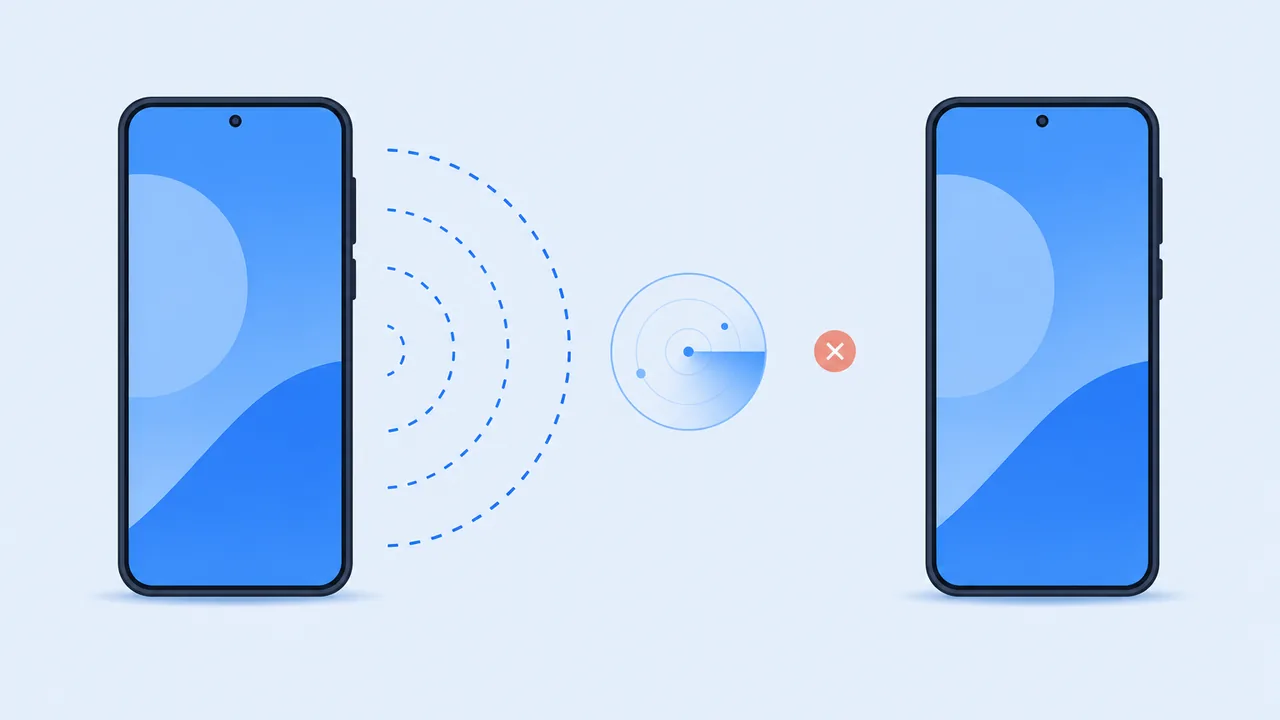
The sending phone spins on a search screen and never lists the receiving phone standing right next to it. Device discovery failures are common with any local transfer app, and SHAREit is no exception. The cause is usually one of four things: the wireless link, an app permission, the send/receive roles, or a cross-platform restriction. This guide works through each in order, then covers what to try when nothing helps.
On This Page
Why Can't SHAREit Find Another Phone?
SHAREit does not discover devices over the internet. It builds a small local network between the two phones — usually over Wi-Fi, sometimes with one device acting as a hotspot — and then looks for other running copies of the app on that network. Discovery therefore fails when any part of that chain is broken.
In practice, the failures group into four buckets:
- Wireless state: the two phones are not on a network they can share, or a VPN is filtering local traffic.
- Permissions: the app was never granted the permissions Android or iOS now requires for local discovery.
- Roles: both phones are trying to send, or neither has reached the connection screen.
- Platform limits: Android and iPhone do not connect under the same conditions, and some modes only work between devices of the same type.
Check Wi-Fi and Wireless Settings
Start with the simplest layer. A surprising number of "cannot find device" reports end here.
- Turn Wi-Fi on for both phones. Local discovery needs the wireless radio even when no internet connection is available.
- Use the same local network when the mode requires it. If both devices join the same home router, make sure neither is on a guest network — guest networks isolate clients from each other by design.
- Turn off VPNs temporarily. A VPN can route or block local traffic, and many VPN apps enable a "block local network" option by default.
- Keep the phones close. Two to three meters is plenty. Distance matters less than walls and metal, but it still matters.
- Do not confuse mobile data with local transfer. A phone with full 5G bars can still be unable to see the other device, because the transfer does not travel over the carrier network.
If one phone is sharing a hotspot instead of joining a router, remember that the hotspot host and the connected device are on different sides of the connection — some apps require the receiver to join the hotspot rather than the other way round.
Allow SHAREit to Access Nearby Devices
Android and iOS both gate local discovery behind runtime permissions, and the permission names changed across versions.
On Android. Depending on your version, SHAREit needs Nearby devices, Location (older releases used it to scan Wi-Fi networks), and Photos and videos or Files access to read what you want to send. Open Settings, find the app, and check the Permissions screen. If a permission is set to "Ask every time," grant it while the app is in the foreground.
On iPhone. iOS asks for Local Network access the first time an app tries to discover devices nearby, and it asks for photo access separately. If you declined the local network prompt once, the app cannot see other devices until you re-enable it under Settings, Privacy & Security, Local Network.
A useful sanity check: if the permission dialog never appeared at all, the app may never have reached the step that requests it. Reinstalling is faster than hunting for a toggle that was never created.
Make Sure Both Phones Are Ready to Connect
Device discovery needs one side listening. If both phones are on the send screen, neither is advertising itself as a receiver.
- Open SHAREit on both phones.
- On one phone, choose Send and select the files you want to move.
- On the other phone, choose Receive and leave that screen open.
- Wait a few seconds for the device list to refresh. Pull to refresh if the app supports it.
- Tap the receiving device on the sender's list, then accept the connection prompt on the receiver.
- If nothing appears, close both apps completely and repeat.
Also check the basics people skip: airplane mode off, Wi-Fi on for both, and neither phone in a battery-saver mode that suspends background networking. A phone that has been idle for hours may have suspended the app the moment the screen turned off.
Try Another SHAREit Connection Method
SHAREit offers more than one way to connect, and the available options change between versions. Rather than assuming a specific menu, open the connect screen and see which modes your build actually lists.
- Same Wi-Fi network. Both phones join one router. Fastest option when it works, because no hotspot needs to be created.
- Hotspot mode. One phone shares its hotspot and the other joins it, creating a private link that does not depend on the router at all.
- Web or browser transfer. A browser-based session where one device displays an address or code and the other opens it. Useful when the two devices cannot run the same app build.
- QR code pairing. The sending device shows a code, the receiver scans it. This removes manual network selection, which is where many attempts fail. See our guide on sharing files with a QR code.
Android and iOS do not have identical capabilities. A mode that works smoothly between two Android phones may be unavailable, or behave differently, when one side is an iPhone. Check the current app listing on each platform before promising yourself a specific workflow.
What If SHAREit Still Cannot Find the Device?
When the basics are exhausted, escalate in this order. Each step rules out a different layer.
- Restart both phones. This clears stuck Wi-Fi state and any suspended background service.
- Check for app updates on both sides. A sender on a very old build and a receiver on a new one can fail to negotiate a connection.
- Re-grant permissions. Revoke and re-allow nearby devices, location, and photo access so the app requests them again.
- Try a different network. A second router, another hotspot, or a fully offline hotspot test tells you whether the network is the problem.
- Use a different transfer method. A USB cable, cloud storage, or a QR-based web transfer all bypass local discovery entirely.
If you are moving between platforms rather than between two Android phones, our pages on transferring files between Android phones and Android to iPhone transfers explain the supported paths and their limits. For transfers that start but never finish, see fixing SHAREit transfers that fail or get stuck.