How to Fix SHAREit Transfer Failed or Stuck
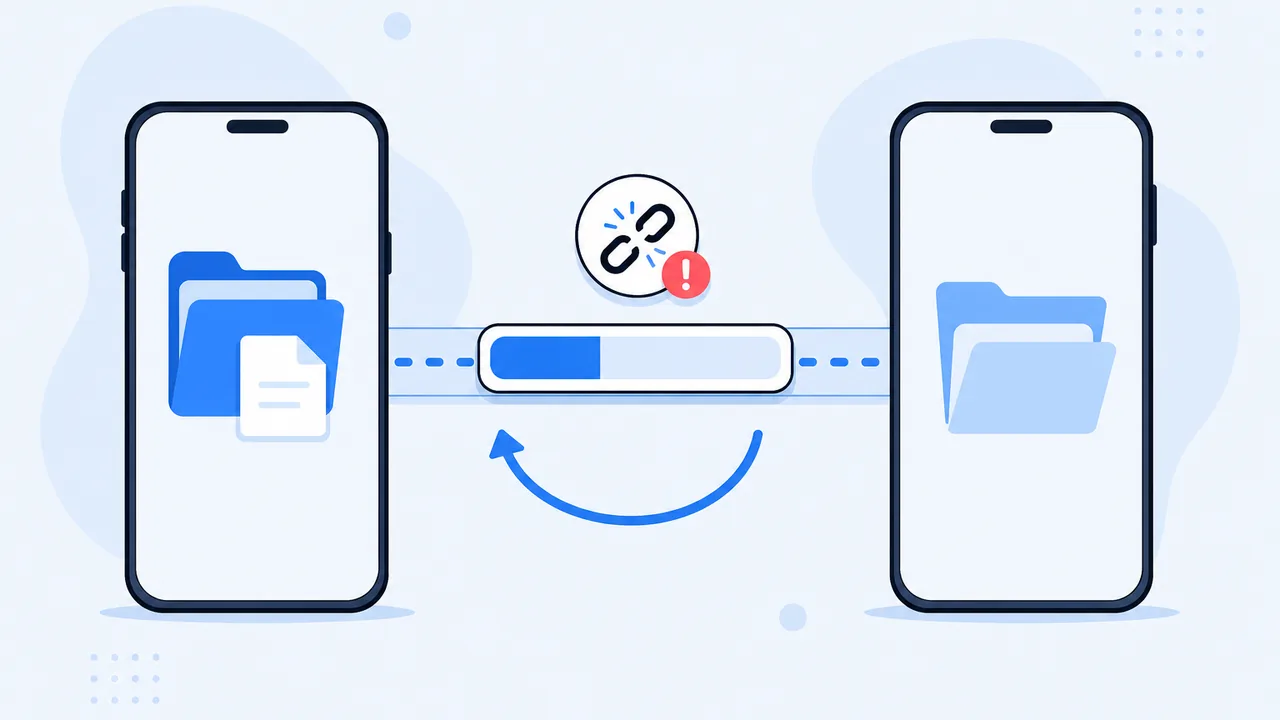
The progress bar has not moved in two minutes, or it reached 60% and the transfer simply vanished. Failed and stalled transfers are the most reported SHAREit problem, and retrying blindly rarely helps because the cause is usually still present. This guide separates connection drops from storage limits, permission problems, and individual bad files so you can fix the right one.
On This Page
Why Does SHAREit Transfer Keep Failing?
Before changing settings, identify which symptom you actually have. They point to different causes.
- The bar never leaves 0%. The two devices are connected but no data is flowing — usually a permission, a background restriction, or a nearly full destination.
- The transfer stops partway. The link dropped. Wi-Fi hiccups, a screen lock, or one device walking out of range will do it.
- Only some files arrived. One file in the batch is problematic, or the receiver ran out of space before finishing the queue.
- The app reports Failed with no detail. Often a file the app cannot read or write, such as a protected document or a file on an unmounted SD card.
- Large files fail more than small ones. Expected: they take longer and have more opportunity to hit a link interruption or a space limit.
Check the Connection Between Both Devices
Local transfers run over a Wi-Fi link that the two phones negotiate. That link is fragile in a few specific ways.
- Are both phones still connected? If one switched to mobile data or lost Wi-Fi, the session ends. Keep both on the same network for the whole transfer.
- Did either device leave the effective range? Local Wi-Fi is short-range. Walking into another room, or putting a metal desk between the phones, can break it.
- Did the network change mid-transfer? A phone that auto-joins a stronger hotspot or a VPN that reconnects will interrupt the session.
- Is the app allowed to run in the background? Android aggressively suspends background apps. If the screen locks and the transfer dies, set SHAREit to unrestricted battery usage during the transfer.
Keep both screens on, both phones within a couple of meters, and both apps in the foreground until the transfer reports complete. It sounds trivial, and it resolves a large share of stalled transfers.
Make Sure There Is Enough Storage Space
A receiver with a full disk cannot write the incoming file, and the failure often looks like a network problem because the progress bar freezes instead of showing an error.
- Check free space on the receiving device. Open Settings, then Storage, and look at the actual free number rather than the usage bar.
- Budget more than the file size. A 3 GB video needs at least 3 GB free, and realistically 4 GB, because temp files and thumbnails are written along the way.
- Check the SD card. If the download folder is on a removable card, confirm the card is mounted and writable. A failing card can accept a file listing and then fail on the write.
- Send one small file as a test. If a 2 MB photo transfers fine, the link is alive and the problem is size or space, not discovery.
Check App Permissions and File Access
Android requires explicit permissions for reading source files and writing into the destination folder. When one is missing, the app may connect successfully and still fail to move bytes.
- Media and file access. On Android 13 and later, photos, videos, and audio each have their own permission. Grant the one matching the file type you are sending.
- Destination write access. Confirm the app can write to its chosen download folder. If the path points to a removed SD card, reset it to internal storage.
- Battery and background limits. Some phones ship a "deep sleep" or "app freeze" mode that kills long-running background work. Exempt SHAREit while transferring, then re-enable the restriction afterwards.
On iPhone, the equivalent checks are photo library access and local network access. Both are in Settings, and both have a habit of being declined once and forgotten.
Try Sending Files in Smaller Groups
Batch transfers multiply risk: more data, more time, more chances for one bad file to interrupt the queue. Splitting the batch turns a vague failure into a specific one.
- Send a single small file first — one photo is enough.
- If that works, send a small group of photos.
- Then try one large video on its own.
- Compare which type or size fails, and note the exact number where the progress bar stops.
This is a diagnostic method, not a guaranteed fix. If single photos always succeed and large videos always fail, the problem is space, link stability, or a specific file — not the app in general. It also tells you whether one particular file is corrupt, which is easy to confirm by opening it on the sender before retrying.
What to Do If SHAREit Still Fails
Move through these in order, and stop as soon as transfers complete.
- Force stop and reopen the app on both phones to clear a stuck session.
- Restart both devices. This resets Wi-Fi state and releases any file locks.
- Update the app on both sides so sender and receiver speak the same protocol.
- Reconnect from scratch — clear the old session rather than resuming it.
- Switch transfer method. A USB cable, cloud storage, or a browser-based transfer avoids the local link entirely.
One rule that prevents real damage: do not delete the source files until the copy on the receiving device opens correctly. A "completed" bar is not proof; playing the video or opening the document is. If the devices never connected at all, start with why SHAREit cannot find nearby devices; if transfers succeed but you cannot locate the output, see where SHAREit saves files on Android. For phone-to-computer transfers, our Phone to PC guide covers the wired option.