How to Fix SHAREit Not Connecting
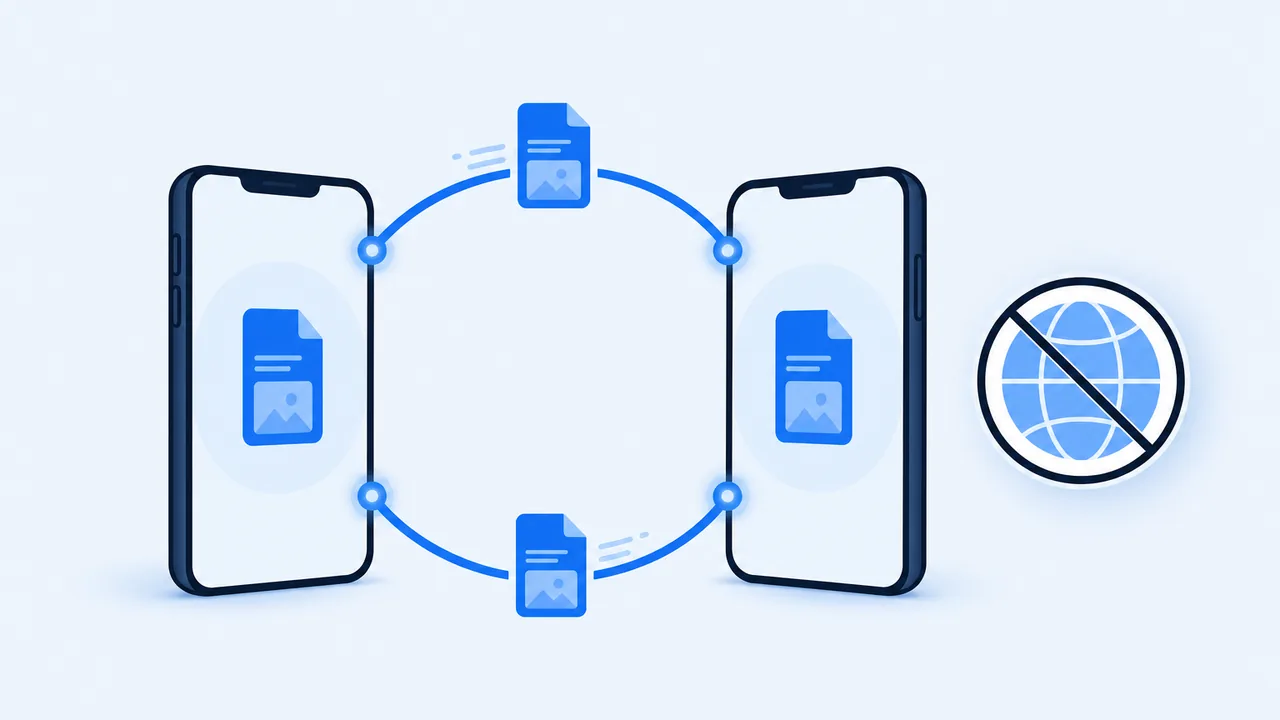
SHAREit can find another device but still fail to establish a connection. You may see a connection request that never completes, a device that keeps waiting for confirmation, or a transfer screen that returns to the previous step.
These problems are not always caused by a weak internet connection. SHAREit transfers files between nearby devices, and the connection can depend on local network settings, device permissions, Wi-Fi behavior, and the way each device handles the connection.
The quickest way to narrow down the problem is to identify when the connection fails: before the other device appears, when you accept the connection request, or after the transfer session has started.
On This Page
- When Does the SHAREit Connection Fail?
- Check Both Devices Before Trying Again
- Fix Wi-Fi and Hotspot Conflicts
- Check App Permissions on Android
- Check Local Network Access on iPhone
- When SHAREit Cannot Connect a Phone to a Computer
- Why Does SHAREit Disconnect After Connecting?
- A Practical Connection Test
- What Not to Do When SHAREit Will Not Connect
- Frequently Asked Questions
- Get the Connection Working Before Sending Files
When Does the SHAREit Connection Fail?
The stage at which SHAREit stops working can point to a different cause.
| What happens | What to check first |
|---|---|
| The other device never appears | Device discovery and permissions |
| The device appears but will not connect | Connection request, Wi-Fi and local network settings |
| The connection request keeps loading | Network switching and app state |
| The devices connect and then disconnect | Wi-Fi stability, background restrictions and distance |
| Only one transfer direction works | Permissions and receiving-device settings |
If the other phone does not appear at all, start with the separate SHAREit nearby device detection guide. This article focuses on problems that happen when the devices are trying to establish or maintain a connection.
Check Both Devices Before Trying Again
Start by checking the sending and receiving devices together. A connection problem can originate from either side, even when one phone appears to be working normally.
Make sure:
- SHAREit is open on both devices.
- One device is in Send mode and the other is in Receive mode, where the app provides these options.
- Both devices are close enough for a stable local connection.
- Neither device is in airplane mode with the required wireless features disabled.
- The receiving device is ready to accept the connection.
- You are using compatible, functioning versions of the app.
Do not keep tapping the connection button repeatedly. If a previous request is still waiting, repeated attempts can make it harder to tell which session is active.
Close the unfinished connection screen on both devices, return to the main transfer screen, and start a new session.
Fix Wi-Fi and Hotspot Conflicts
Wi-Fi settings are one of the first things worth checking when SHAREit cannot connect two devices.
Some SHAREit versions and transfer methods use a direct wireless connection or a temporary hotspot. Others may use a local network connection. The exact process depends on the app version and device combination.
Try the following checks:
- Turn Wi-Fi on for both devices.
- Check whether either device has automatically switched to another wireless network.
- If SHAREit asks you to join a temporary network, follow the in-app instructions.
- Avoid manually switching networks while the connection is being established.
- If a phone asks whether to remain connected to a network without internet access, do not switch away from it during the transfer setup unless the app instructs you to.
- Temporarily disconnect from a VPN if it interferes with local device communication.
A common source of confusion is the message that a Wi-Fi network has no internet access. A local file transfer does not necessarily need internet access. If SHAREit has created or requested a direct local connection, the phone may still need to stay connected to that network even though it cannot browse the web through it.
Do not change router settings or reset network configurations as the first response. Check the connection method shown by SHAREit before making broader changes.
Check App Permissions on Android
Android permissions can affect whether SHAREit can access nearby devices or use the features needed for a transfer.
Open your phone's Settings and find SHAREit under Apps. Review the permissions available on your Android version.
Pay particular attention to:
- Nearby devices
- Location, where required by the Android version or app
- Photos and videos
- Music and audio
- Files or storage access, where available
The permission names and categories vary between Android versions. A phone may also ask for a permission when you first use a particular feature.
If a permission is denied, open its settings and allow only the access needed for the transfer you want to perform. Then return to SHAREit and start a new connection.
Also check whether your phone restricts SHAREit from running in the background. Battery-saving modes and background activity restrictions can interrupt a connection when you switch to another app.
Check Local Network Access on iPhone
On an iPhone, local network access is particularly important when an app needs to communicate with other devices on the same network.
Open:
Settings → Privacy & Security → Local Network
Look for SHAREit and check whether local network access is enabled, if the app appears in the list.
You should also check whether SHAREit has the photo access required to select or receive the files you are working with.
If you recently denied a permission, the app may not be able to complete the same connection workflow until access is restored.
Do not assume that turning on Bluetooth alone will solve a SHAREit connection problem. Follow the connection method presented by the app and check the permissions relevant to that method.
When SHAREit Cannot Connect a Phone to a Computer
A phone-to-PC connection can fail for reasons that do not affect phone-to-phone transfers.
First, check that the Windows computer and phone are using a compatible SHAREit connection method. Open the relevant connection screen on both devices rather than relying on an old saved connection.
Then check the following:
Windows network profile
Windows may classify a network as Public or Private. Some local discovery and communication behavior can differ between these profiles. If you are using a trusted home or office network, review the network profile in Windows Settings.
Do not switch a network to Private on an untrusted public connection just to make SHAREit work.
Windows Defender Firewall
A firewall can block local communication from an application. Review the Windows Defender Firewall settings and check whether the installed SHAREit application is allowed on the appropriate trusted network.
Do not disable the firewall entirely. If a rule needs changing, allow only the application and network access required.
Different wireless networks
If the PC and phone are using different networks or isolated guest networks, they may not be able to communicate locally. Check the network arrangement before changing application settings.
Old PC software
If you are using a desktop version of SHAREit, verify that it is compatible with your Windows version and the mobile app. Older desktop releases may not behave like newer mobile versions.
Why Does SHAREit Disconnect After Connecting?
A connection that works briefly and then drops is different from a connection that never starts.
Look at what happens immediately before the disconnection.
If the connection drops when the phone screen turns off, check battery optimization and background activity restrictions. Some Android devices limit network activity when an app is no longer in the foreground.
If it disconnects when you move away, reduce the distance between the devices and avoid placing them behind thick walls or other obstacles.
If it happens when you open another app, check whether your phone pauses SHAREit in the background.
If it happens only on a particular Wi-Fi network, the router may have client isolation or network restrictions that prevent connected devices from communicating with each other.
You can also test a different supported connection method, if SHAREit offers one on your devices. Change one condition at a time so you can identify what actually fixes the problem.
A Practical Connection Test
If you have tried several settings and still cannot connect, use a simple test to separate a device problem from a network problem.
- Place the two devices next to each other.
- Close any unfinished SHAREit sessions.
- Turn on Wi-Fi on both devices.
- Open SHAREit and prepare one device to send and the other to receive.
- Follow the connection instructions shown on the receiving device.
- Try a small, ordinary image rather than a large folder.
- Keep both apps open until the connection is established.
If this works, the original problem may involve the network environment, background restrictions, or the type of file transfer you attempted.
If it still fails, try connecting a different pair of devices, if available. This can help establish whether the issue is specific to one phone or computer.
What Not to Do When SHAREit Will Not Connect
Some troubleshooting steps can create additional problems without addressing the original cause.
Avoid these mistakes:
- Do not repeatedly reinstall SHAREit before checking permissions and network settings.
- Do not disable all phone security features or the Windows firewall.
- Do not connect to an unfamiliar hotspot just because it has a similar name.
- Do not assume every SHAREit version uses the same connection method.
- Do not delete application data if you have not checked whether it contains files or settings you need.
If the connection issue started immediately after an app or operating system update, record the version and error message. This information is more useful than repeatedly trying random settings.
Frequently Asked Questions
Get the Connection Working Before Sending Files
When SHAREit cannot connect, the important distinction is whether it can discover the other device and whether it can complete the wireless session. Check those stages separately, then review permissions and network behavior on both sides.
Once the devices connect reliably, test with a small file before starting a large transfer. If the connection works but the file does not arrive, the problem belongs to the transfer process rather than device connection.