How to Fix SHAREit Transfer Failed Errors
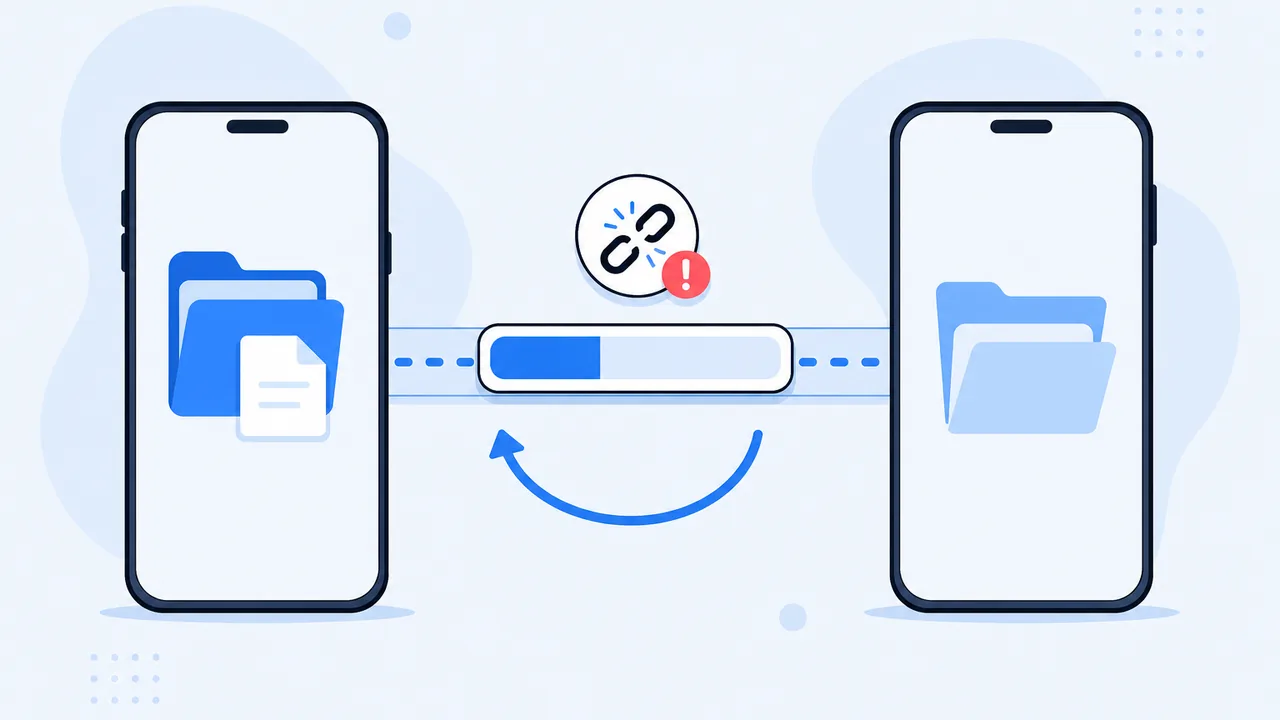
A SHAREit transfer can fail even when both devices have connected successfully. The file may refuse to start, the progress bar may stop moving, or the receiving device may report an error after the transfer appears to finish.
The cause depends on what was being transferred and when the failure occurred. A photo that cannot be selected points to a different problem from a large video that stops at 80%. Likewise, a completed transfer that does not appear in the receiving device's gallery may be a saving or indexing issue rather than a failed connection.
Before sending the file again, identify which stage failed. This can prevent duplicate files and unnecessary changes to your device.
On This Page
- Identify the Type of Transfer Failure
- Check Available Storage on the Receiving Device
- Check Whether SHAREit Can Access the Selected Files
- What to Do When the Transfer Stops Halfway
- Why Large Files May Fail to Transfer
- The Transfer Says Complete, but the File Is Missing
- How to Retry Without Creating Duplicate Files
- When Only Certain Files Fail
- Check the Receiving Device's File Format Support
- Sending Files to a Windows PC
- A Reliable Test Before Sending the Full Batch
- Frequently Asked Questions
- Confirm the File Before Sending It Again
Identify the Type of Transfer Failure
Look at the last thing that happened before SHAREit displayed an error.
| What you see | Possible cause |
|---|---|
| The file cannot be selected | File access or permission problem |
| Transfer never starts | Device session or file selection issue |
| Progress stops at the same point | Storage, network, or file-specific problem |
| Transfer stops when the screen locks | Background activity restriction |
| The receiver reports insufficient space | Not enough available storage |
| Transfer completes but the file is missing | Save location or media indexing issue |
| Only one particular file fails | File access, format, or file integrity issue |
This distinction matters. If SHAREit has already connected the devices, there is no reason to repeat every connection troubleshooting step before checking the file and receiving device.
Check Available Storage on the Receiving Device
Insufficient storage is one of the most straightforward reasons a transfer cannot finish.
A receiving phone may have enough space for a small image but not for a large video or a folder containing hundreds of files.
Check storage on the receiving device, not just the sending device.
On Android:
- Open Settings.
- Go to Storage.
- Review the available space.
- Remove files you no longer need or move existing files elsewhere.
- Check whether the device has enough room for the file you want to receive.
On iPhone:
- Open Settings.
- Select General.
- Open iPhone Storage.
- Review available space.
- Remove or move unnecessary content if needed.
Remember that the displayed file size is not always the only storage requirement. The receiving app and operating system may need additional temporary space while processing a transfer.
If you are sending a large folder, try a smaller selection first. If the smaller transfer works, storage capacity or the size of the original batch may be contributing to the failure.
Check Whether SHAREit Can Access the Selected Files
A file may be visible in another app but unavailable to SHAREit because the app does not have the necessary access.
On Android, review SHAREit's permissions under Settings → Apps → SHAREit → Permissions. Depending on your Android version, access may be listed under Photos and videos, Music and audio, Nearby devices, or other file-related permissions.
On iPhone, check SHAREit's access under Settings. If you selected limited photo access, the image or video you want to send may not be included in the permitted selection.
Try selecting a different file from the same folder or category.
If one group of files can be sent but another cannot, the problem may involve the source file's location or permissions rather than the wireless connection.
Do not grant unrestricted access automatically. Check the permission request and provide only the access needed for the transfer.
What to Do When the Transfer Stops Halfway
A transfer that begins normally but stops before completion usually needs a different approach from a file that cannot be selected.
First, check whether the devices are still connected. If the SHAREit session has ended, you may need to establish a new connection before sending anything again.
Then check these conditions:
Keep both apps active
Some phones restrict background activity when the screen turns off or another app is opened. Keep SHAREit visible on both devices during a test transfer.
Check battery restrictions
Battery-saving features can reduce background network activity. If transfers consistently stop when the screen locks, review battery optimization and background activity settings for SHAREit.
Avoid switching networks
If the devices are using a temporary wireless connection, switching to another network can interrupt the transfer.
Keep the devices nearby
Move the devices closer together and avoid testing through walls or in areas with heavy wireless interference.
Try a smaller file
Send one small photo first. If it succeeds but a large video repeatedly fails, the problem may be related to transfer duration, available storage, or the specific file.
If the transfer fails at different points each time, unstable connectivity or background restrictions are worth investigating. If it always fails on the same file, examine that file separately.
Why Large Files May Fail to Transfer
Large videos, archives, and folders containing many files can expose problems that do not appear during a small transfer.
The larger the transfer, the longer the devices need to maintain a stable session. There is also more opportunity for a phone to lock its screen, pause background activity, or run low on available storage.
For large files, use a controlled approach:
- Check the actual size of the source file.
- Confirm that the receiving device has enough free space.
- Keep both devices powered and awake.
- Avoid running unnecessary apps during the transfer.
- Send one large file at a time.
- Check the result on the receiving device before starting another batch.
If the transfer still fails, try a different large file. This helps distinguish a general transfer limitation from a problem with one specific file.
Do not assume that compressing every file will solve the issue. Compression may reduce the size of some files, but already-compressed formats such as many videos and JPEG images may not become significantly smaller.
The Transfer Says Complete, but the File Is Missing
Sometimes SHAREit reports that a transfer has finished, but the received file is not visible where you expected it.
This does not necessarily mean the file was lost.
Check the following locations and apps:
- The SHAREit received-files area, if available in your version.
- Android's file manager and Downloads or other app-specific folders.
- The Photos or Gallery app for images and videos.
- The Files app on iPhone, including relevant app folders.
- The save location configured by the desktop application on Windows.
A video may be saved successfully but not immediately appear in the gallery. A document may be stored in a folder that the user has not checked.
If you can locate the file in the file manager but not in the gallery, the issue may be media indexing or the file's format rather than the transfer itself.
If you cannot locate it anywhere, check the transfer history or received-file list before sending it again.
For more help finding saved files, see Where Does SHAREit Save Received Files?.
How to Retry Without Creating Duplicate Files
One of the most frustrating parts of a failed transfer is not knowing whether the receiver already has a complete copy.
Sending the same file again without checking can create duplicate photos, videos, or documents.
Use this process:
- Check the transfer result
Look at SHAREit's transfer history or completed-transfer list, if your version provides one. Confirm whether the file is marked as completed, failed, or still in progress.
- Check the receiving device
Open the file manager or the relevant media app. Look for the file name, approximate size, and received time.
- Compare the file
If the file exists, check whether its size matches the original. For important files, a checksum comparison using a trusted file utility provides stronger confirmation than relying on the filename alone.
- Remove only confirmed incomplete copies
If the receiving device contains a clearly incomplete file, remove that copy only after confirming it is not the only usable version.
- Retry one file
Start with the file that failed rather than selecting the entire original batch again.
If the destination folder already contains a file with the same name, check whether SHAREit or the receiving operating system offers an overwrite or rename option. Read the prompt carefully before choosing.
Do not delete an existing file simply because its name matches the source. It may be an earlier complete copy.
When Only Certain Files Fail
If most files transfer successfully but a particular file repeatedly fails, focus on that file rather than changing all your wireless settings.
Possible explanations include:
- The source file is damaged or incomplete.
- Another app is currently using the file.
- The file is stored in a location SHAREit cannot access.
- The file extension does not match its actual format.
- The receiving device cannot handle the file in the way you expect.
- The file is too large for the available storage or transfer method.
Try opening the original file on the sending device. If it cannot be opened normally, the source itself may be damaged.
You can also copy the file to a normal accessible folder, where appropriate, and try sending that copy.
Changing the file extension does not convert its format. For example, renaming a video from one extension to another will not make an unsupported video format compatible.
Check the Receiving Device's File Format Support
SHAREit transfers files, but the receiving device still needs an appropriate app to open them.
A file can arrive successfully and remain unusable because the phone or computer does not have a compatible viewer or media player.
For example:
- A PDF needs a PDF reader or compatible document app.
- Some video formats require a player that supports their encoding.
- Certain archive files need an extraction utility.
- Some document formats require a compatible office application.
Before assuming that the transfer failed, check whether the file exists and whether the receiving device can open that format.
Sending Files to a Windows PC
If the transfer fails only when a computer is involved, check both the desktop application and the destination folder.
On Windows:
- Confirm that the selected destination folder exists.
- Check that the Windows account can write to that folder.
- Review available disk space.
- Check whether security software has blocked the application.
- Make sure the desktop application remains open during the transfer.
If the file arrives but cannot be saved, try a normal user folder that you can access, rather than a protected system directory.
Do not disable antivirus protection or Windows Defender Firewall entirely. If security software blocks a legitimate transfer, review the specific warning and application permissions.
A Reliable Test Before Sending the Full Batch
If you are still unsure why a transfer keeps failing, reduce the number of variables.
Use this test:
- Choose one small image that opens normally on the sending device.
- Confirm that the receiving device has enough storage.
- Open SHAREit on both devices.
- Establish a fresh connection.
- Send the single image.
- Check that it exists and opens on the receiving device.
If this succeeds, send a small group of files next. Then try a larger file separately.
This approach helps identify whether the issue is related to one file, a large batch, storage capacity, or the stability of the transfer session.
Frequently Asked Questions
Confirm the File Before Sending It Again
A failed transfer should not automatically lead to another full transfer attempt. Check the source file, receiving storage, permissions, and transfer history first.
If the connection remains active, a small test file can help identify whether the problem affects all transfers or only certain files. Once you have confirmed the receiving device can save and open the file, continue with the remaining files in smaller batches.