Why Is SHAREit Not Finding Nearby Devices?
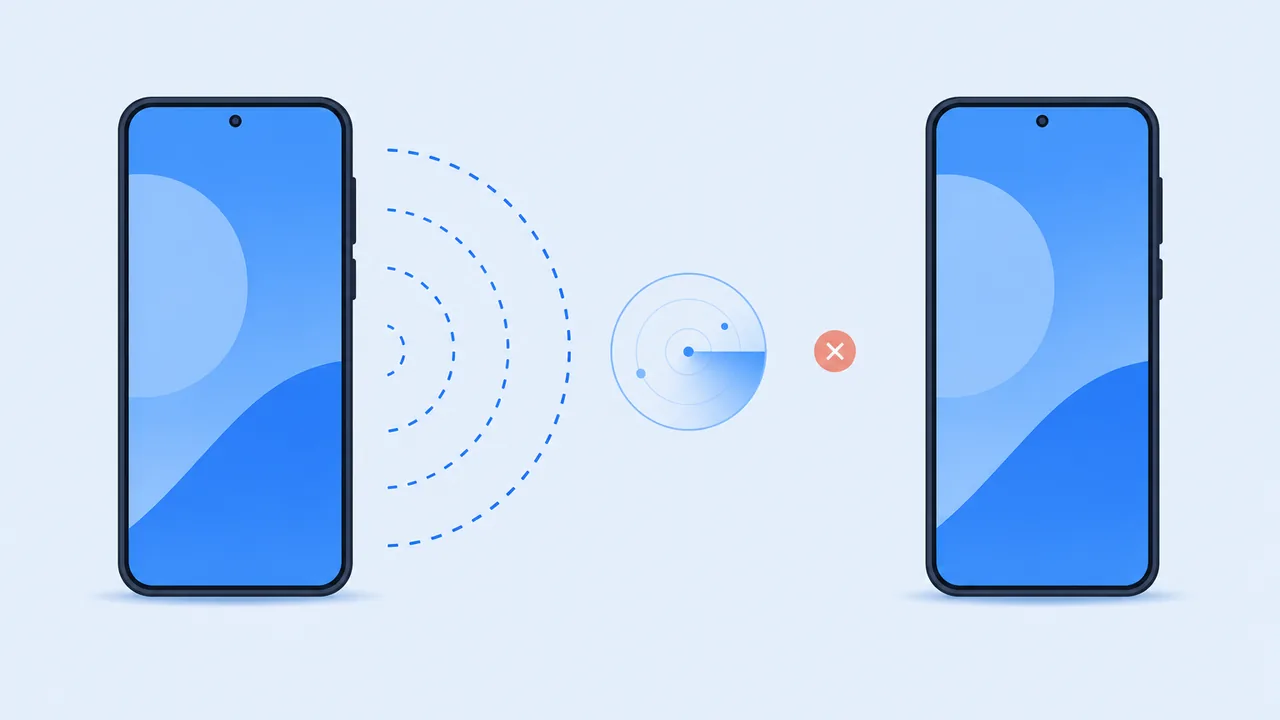
When SHAREit cannot find another phone or computer, the receiving device may be ready to accept files but never appear on the sending device's screen. Sometimes the device list stays empty. In other cases, a nearby phone appears briefly and then disappears.
This is usually a device discovery problem rather than a file transfer problem. SHAREit needs to detect a compatible nearby device before the two sides can establish a transfer session.
Start with the receiving device. Check whether it is actually in a discoverable receiving mode, then review wireless settings and permissions on both devices.
On This Page
- Make the Receiving Device Visible First
- Keep the Devices Close During Discovery
- Check Wi-Fi on Both Devices
- Android: Check Nearby Devices and Location Permissions
- iPhone: Allow Local Network Access
- Why SHAREit Cannot Find a PC
- The Device Appears on One Phone but Not the Other
- Devices Disappear While SHAREit Is Searching
- A Simple Test to Identify the Discovery Problem
- Common Mistakes That Prevent Device Discovery
- Frequently Asked Questions
- Get Both Devices Visible Before Starting a Transfer
Make the Receiving Device Visible First
One of the easiest things to overlook is the receiving device's current screen.
Opening SHAREit on both phones does not always mean they are ready to find each other. The receiving device may need to enter a specific Receive or connection screen before it becomes discoverable.
Try this sequence:
- Open SHAREit on the device that should receive the files.
- Select the Receive option or the relevant nearby-device connection option shown by the app.
- Keep the receiving screen open.
- Open SHAREit on the sending device.
- Select Send and check the nearby-device list.
The labels and screen layout can differ between SHAREit versions. Follow the options available in your installed version rather than relying on screenshots from an older release.
If the receiving phone is sitting on the app's home screen, switch it to the appropriate receiving mode and search again.
Keep the Devices Close During Discovery
Wireless discovery is easier when the devices are physically close.
For the first test, place the phones next to each other. Avoid testing through several walls, from different rooms, or with one device inside a bag.
If one phone is connected to a crowded wireless environment, move both devices to a clearer location and try again.
Distance is not the only factor, but it is a useful variable to eliminate before changing settings. If the devices appear when they are close together but disappear when moved apart, the problem may involve signal quality or the wireless environment.
Check Wi-Fi on Both Devices
Turn on Wi-Fi on both phones and check that neither device is repeatedly switching between networks during discovery.
Depending on the SHAREit version, nearby-device discovery may use a direct wireless connection, a temporary hotspot, or a local network method.
This means two devices do not always need to be connected to the same internet router. However, they do need to follow the connection method supported by the app.
Pay attention to the instructions displayed on the receiving device:
- If SHAREit asks you to join a temporary wireless network, follow that instruction.
- If it expects both devices to communicate over a local network, check whether they are connected to a network that allows device-to-device communication.
- If a phone warns that a network has no internet access, do not automatically switch away from it if it is the connection SHAREit requested.
Guest Wi-Fi networks and some public networks isolate connected devices. Two phones can have internet access on the same network and still be unable to discover each other.
Android: Check Nearby Devices and Location Permissions
Android permissions can affect whether SHAREit can scan for or communicate with nearby devices.
Open your phone's Settings and find SHAREit under Apps. Check the permissions available on your Android version.
Look for:
Nearby devices
On supported Android versions, this permission can control access to nearby wireless devices. If SHAREit requests it and it has been denied, nearby-device discovery may not work correctly.
Location
Some Android versions and app implementations require location permission for certain wireless scanning functions. Whether it is needed depends on the operating system version and the app's implementation.
Wi-Fi and related settings
Check that Wi-Fi is enabled and that no device-level restriction is preventing the app from using the required wireless features.
Do not grant unrelated permissions just to make the device appear. If Android asks for access, read the request and allow the permission only when it is relevant to the function you want to use.
iPhone: Allow Local Network Access
If you are using SHAREit on an iPhone, check its Local Network permission.
Go to:
Settings → Privacy & Security → Local Network
If SHAREit appears in the list, make sure local network access is enabled when you want it to communicate with devices on your network.
Also check whether the app has the access it needs to select or receive photos and other files.
If SHAREit does not appear in the Local Network list, open the app and use the relevant connection feature again. The permission prompt may only appear when the app first requests local network access.
A denied permission can prevent the iPhone from communicating with other devices even when Wi-Fi is turned on.
Why SHAREit Cannot Find a PC
Finding a Windows computer can require additional checks because Windows network settings and firewall rules may affect local discovery.
Start by confirming that the SHAREit desktop application is actually running and ready to receive or send files. A computer with the app installed but not open may not appear as an available transfer destination.
Then review these points:
Check the network connection
If the transfer method uses a shared local network, make sure the PC and phone are connected to a network that permits communication between devices.
Review Windows network profile
On a trusted private network, Windows can use different network behavior from a public network. Check the current profile under Windows Settings → Network & Internet.
Check firewall permissions
Windows Defender Firewall may restrict an application from communicating over a local network. Review whether the installed SHAREit application is allowed on the relevant trusted network.
Do not turn off the firewall entirely. If a permission change is needed, make a specific application rule instead.
Check the desktop application
An outdated or incompatible desktop release may not support the same discovery process as the mobile version. Verify that the PC software is suitable for your Windows version and the phone app you are using.
The Device Appears on One Phone but Not the Other
This situation can help narrow down the cause.
For example, if Phone A can see Phone B but Phone B cannot see Phone A, the two devices may have different permission settings or different connection states.
Check the following:
- Is the receiving device on the correct screen?
- Does the phone that cannot discover devices have Nearby Devices permission?
- Is Local Network access enabled on the iPhone, where applicable?
- Is one device connected to a guest or isolated network?
- Are the apps running compatible versions?
- Does the problem remain when the sending and receiving roles are reversed?
Switching the sending and receiving roles is a useful test. If the same phone is always invisible, investigate that phone's settings. If the problem follows the receiving role, check how the receiving screen is being opened.
Devices Disappear While SHAREit Is Searching
A device that appears briefly and then disappears may be leaving its discoverable state.
Possible causes include:
- The receiving device returned to the home screen.
- SHAREit was moved into the background.
- Battery restrictions paused the app.
- The wireless connection changed.
- The receiving session expired or was cancelled.
- The devices moved out of reliable wireless range.
Keep SHAREit in the foreground on both devices while testing. If one phone has aggressive battery management, review its background activity settings.
Do not assume the other phone is broken simply because it disappears from the list. First check whether its receiving session is still active.
A Simple Test to Identify the Discovery Problem
Use this test before changing advanced settings.
- Put both devices next to each other.
- Turn on Wi-Fi.
- Open SHAREit on the receiving device.
- Enter its Receive or nearby-connection screen.
- Keep that screen visible.
- Open the Send screen on the other device.
- Search for the receiver.
- If it does not appear, reverse the roles and repeat the test.
The result is useful:
- If neither device can see the other, check permissions and the wireless environment on both.
- If only one device can discover the other, compare the settings on the device that remains invisible.
- If discovery works only when the phones are very close, investigate signal conditions and network interference.
- If phones can discover each other but a PC cannot, focus on Windows network and firewall settings.
This test helps avoid changing unrelated settings without knowing which device is responsible.
Common Mistakes That Prevent Device Discovery
A few habits can make troubleshooting harder:
- Opening SHAREit without putting the receiving device into Receive mode.
- Assuming two devices must always use the same internet connection.
- Switching away from a temporary network requested by SHAREit.
- Denying nearby-device or local-network access and then searching repeatedly.
- Leaving the receiving app in the background.
- Testing on a guest network that isolates connected devices.
- Using an old desktop application with a newer mobile version.
If the devices are visible but the connection still cannot be established, follow the SHAREit connection troubleshooting guide. Finding a device and connecting to it are two different stages.
Frequently Asked Questions
Get Both Devices Visible Before Starting a Transfer
Device discovery depends on more than having SHAREit installed. The receiving device needs to be ready, the wireless connection must support communication, and the operating system must allow the app to access the required features.
Start with the receiving screen and nearby-device permissions. Once the other device appears consistently, move on to establishing the connection and sending a small test file.